> ## Documentation Index
> Fetch the complete documentation index at: https://docs.nscale.com/llms.txt
> Use this file to discover all available pages before exploring further.
# Overview
> The CLI provides a powerful, automation-friendly interface to all Nscale resources and services.
## Installation
You can install the CLI using any of the following methods:
### Download binary
Download the binary for your operating system from the [releases page](https://github.com/nscaledev/homebrew-tap/releases).
### Homebrew (for macOS users)
You can install the CLI using Homebrew:
```bash theme={null}
# Tap our Homebrew repository
brew tap nscaledev/nscale
# Install the CLI
brew install nscale
```
Alternatively, you can combine both steps into a single command:
```bash theme={null}
brew install nscaledev/tap/nscale
```
## Authentication
Before using any commands that interact with Nscale resources, authenticate with:
```bash theme={null}
nscale login
```
This opens a browser window to complete authentication. On success, your credentials are stored locally.
To log out:
```bash theme={null}
nscale logout
```
### Credential precedence
The CLI resolves which credentials to use in this order, from highest to lowest priority:
1. **`NSCALE_SERVICE_TOKEN` environment variable** — when set, the token is used directly and every source below is ignored (no keyring lookup happens at all).
2. **`-u, --user` flag, when explicitly passed** — selects that named entry from the local keyring (the one created by `nscale login`) and takes precedence over any active context.
3. **Active context's user** — the `user` field of the context selected via `--context` or previously set with `nscale contexts use`. Used whenever `-u` is not passed on the command line.
4. **`default` keyring entry** — the fallback when no context is active and `-u` was not passed.
If `NSCALE_SERVICE_TOKEN` is set in your shell, it silently overrides `nscale login`, `--user`, and any context — even if the token belongs to a different organization than you expect. When a command behaves unexpectedly (wrong org, "unauthorized", missing resources), check this first:
```bash theme={null}
echo "$NSCALE_SERVICE_TOKEN"
```
Unset it with `unset NSCALE_SERVICE_TOKEN` to fall back to your stored credentials.
## Global flags
These flags are available on every command:
| Flag | Description |
| ------------------- | ---------------------------------------------------------------------------- |
| `--ci` | Indicates the CLI is running in a CI environment (also set via `CI` env var) |
| `--context string` | Specify the context to use |
| `-u, --user string` | Specify the user credentials to use (default: `"default"`) |
| `-h, --help` | Show help for any command |
## Environment variables
| Variable | Description |
| ---------------------- | ------------------------------------------------------------------------------- |
| `CI` | Override the `--ci` flag |
| `NSCALE_SERVICE_TOKEN` | Service token for authorization — bypasses stored credentials, useful for CI/CD |
## Contexts
Contexts let you switch between different organizations and user configurations without re-specifying flags on every command.
```bash theme={null}
# Create or update a context
nscale contexts set --name my-context --org
# Switch to a context
nscale contexts use my-context
# List all contexts
nscale contexts list
```
## Output formats
Most `list` and `get` commands support a `--json` flag for machine-readable output:
```bash theme={null}
nscale instances list --org --json
```
`--json` and `-q` are mutually exclusive — pick whichever fits your downstream tooling.
## Input formats
`create` and `update` commands accept input from a JSON file (`--file`) or standard input (`--stdin`):
```bash theme={null}
nscale instances create --file instance.json
cat instance.json | nscale instances create --stdin
```
Use `--dry-run` to preview the request payload without making any changes:
```bash theme={null}
nscale instances create --file instance.json --dry-run
```
## Interactive mode
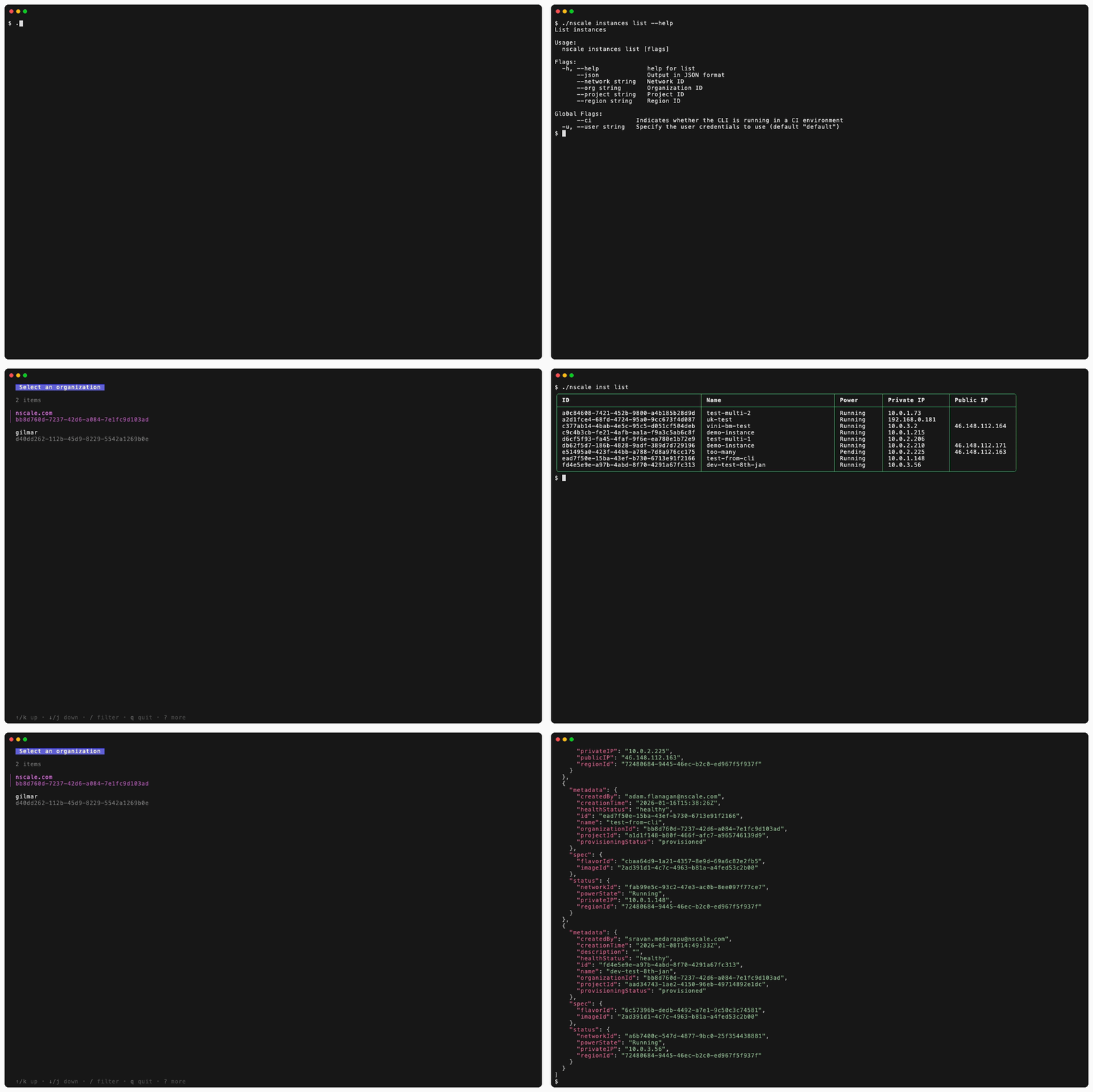
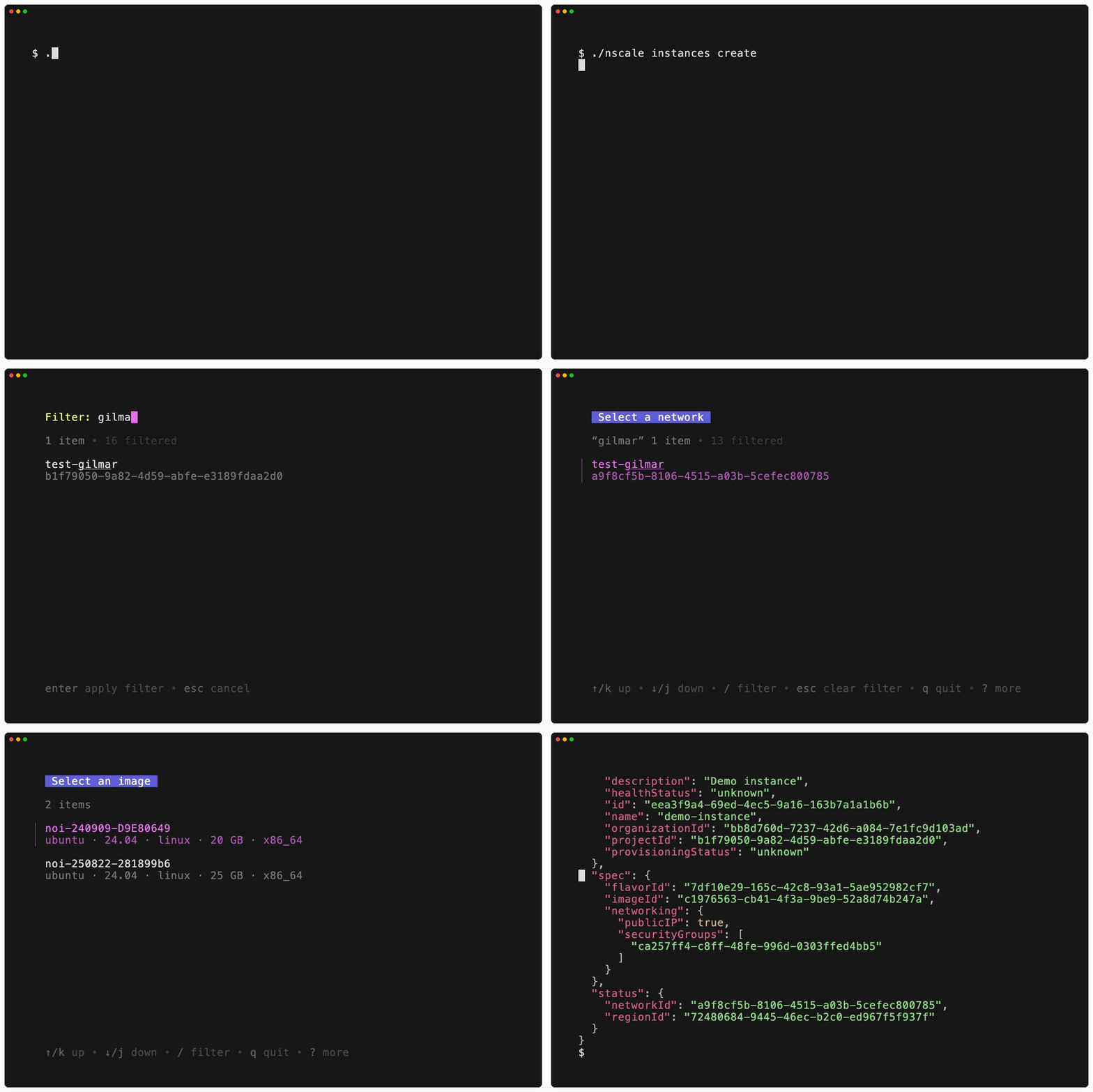
When running outside of a CI environment, the CLI falls back to interactive prompts for any missing parameters. This means you can run commands without flags and be guided through the required inputs step by step.
For example, `list` commands will present an organization picker if `--org` is not provided:
 `create` commands will prompt for each required field when no `--file` or `--stdin` input is given:
 To suppress interactive prompts (e.g. in scripts), pass `--ci` or set the `CI` environment variable.
## Shell completion
### Bash
```bash theme={null}
# Load completions for current session
source <(nscale completion bash)
# To load completions for every new session, execute once:
# Linux:
sudo nscale completion bash > /etc/bash_completion.d/nscale
# macOS:
# First, ensure bash-completion is installed
# brew install bash-completion
nscale completion bash > $(brew --prefix)/etc/bash_completion.d/nscale
# Then add to ~/.bash_profile:
# [[ -r "$(brew --prefix)/etc/profile.d/bash_completion.sh" ]] && . "$(brew --prefix)/etc/profile.d/bash_completion.sh"
```
### Zsh
```bash theme={null}
# Load completions for current session
source <(nscale completion zsh)
# To load completions for every session, execute once:
# First, check your fpath directories to find the right location:
echo $fpath
# Then, create a directory for completions if it doesn't exist:
mkdir -p ~/.zsh/completions
nscale completion zsh > ~/.zsh/completions/_nscale
# If shell completion is not already enabled in your environment,
# you will need to enable it. You can execute the following once:
echo 'fpath=(~/.zsh/completions $fpath)' >> ~/.zshrc
echo 'autoload -Uz compinit && compinit' >> ~/.zshrc
# You will need to source your ~/.zshrc or start a new shell for this setup to take effect.
source ~/.zshrc
```
### Fish
```bash theme={null}
# Load completions for current session
nscale completion fish | source
# To load completions for every session, execute once:
mkdir -p ~/.config/fish/completions
nscale completion fish > ~/.config/fish/completions/nscale.fish
```
### PowerShell
```powershell theme={null}
# Load completions for current session
nscale completion powershell | Out-String | Invoke-Expression
# To load completions for every new session, run:
nscale completion powershell > nscale.ps1
# and source this file from your PowerShell profile.
```
## Query output with `-q`
Most commands that return data accept `-q, --query`, which runs the JSON response through a [jq](https://jqlang.github.io/jq/) filter so you can extract a field or reshape the output without piping into a second process. See [Query output with `-q`](/docs/cli/query-output) for examples.
## Available commands
| Command | Description |
| ---------------------------------------------- | ---------------------------------- |
| [`contexts`](/docs/cli/contexts) | Manage CLI contexts |
| [`filestorage`](/docs/cli/filestorage) | Manage file storage resources |
| [`flavors`](/docs/cli/flavors) | List available compute flavors |
| [`groups`](/docs/cli/groups) | Manage groups |
| [`images`](/docs/cli/images) | Manage compute images |
| [`inferencing`](/docs/cli/inferencing) | Manage inferencing resources |
| [`instances`](/docs/cli/instances) | Manage compute instances |
| [`login`](/docs/cli/login) | Authenticate with Nscale |
| [`logout`](/docs/cli/logout) | Log out of the CLI |
| [`networks`](/docs/cli/networks) | Manage VPC networks |
| [`organizations`](/docs/cli/organizations) | List organizations |
| [`projects`](/docs/cli/projects) | Manage projects |
| [`regions`](/docs/cli/regions) | List available regions |
| [`securitygroups`](/docs/cli/securitygroups) | Manage security groups |
| [`serviceaccounts`](/docs/cli/serviceaccounts) | Manage service accounts |
| [`ssh-cas`](/docs/cli/ssh-cas) | Manage SSH certificate authorities |
| [`version`](/docs/cli/version) | Display the CLI version |
To suppress interactive prompts (e.g. in scripts), pass `--ci` or set the `CI` environment variable.
## Shell completion
### Bash
```bash theme={null}
# Load completions for current session
source <(nscale completion bash)
# To load completions for every new session, execute once:
# Linux:
sudo nscale completion bash > /etc/bash_completion.d/nscale
# macOS:
# First, ensure bash-completion is installed
# brew install bash-completion
nscale completion bash > $(brew --prefix)/etc/bash_completion.d/nscale
# Then add to ~/.bash_profile:
# [[ -r "$(brew --prefix)/etc/profile.d/bash_completion.sh" ]] && . "$(brew --prefix)/etc/profile.d/bash_completion.sh"
```
### Zsh
```bash theme={null}
# Load completions for current session
source <(nscale completion zsh)
# To load completions for every session, execute once:
# First, check your fpath directories to find the right location:
echo $fpath
# Then, create a directory for completions if it doesn't exist:
mkdir -p ~/.zsh/completions
nscale completion zsh > ~/.zsh/completions/_nscale
# If shell completion is not already enabled in your environment,
# you will need to enable it. You can execute the following once:
echo 'fpath=(~/.zsh/completions $fpath)' >> ~/.zshrc
echo 'autoload -Uz compinit && compinit' >> ~/.zshrc
# You will need to source your ~/.zshrc or start a new shell for this setup to take effect.
source ~/.zshrc
```
### Fish
```bash theme={null}
# Load completions for current session
nscale completion fish | source
# To load completions for every session, execute once:
mkdir -p ~/.config/fish/completions
nscale completion fish > ~/.config/fish/completions/nscale.fish
```
### PowerShell
```powershell theme={null}
# Load completions for current session
nscale completion powershell | Out-String | Invoke-Expression
# To load completions for every new session, run:
nscale completion powershell > nscale.ps1
# and source this file from your PowerShell profile.
```
## Query output with `-q`
Most commands that return data accept `-q, --query`, which runs the JSON response through a [jq](https://jqlang.github.io/jq/) filter so you can extract a field or reshape the output without piping into a second process. See [Query output with `-q`](/docs/cli/query-output) for examples.
## Available commands
| Command | Description |
| ---------------------------------------------- | ---------------------------------- |
| [`contexts`](/docs/cli/contexts) | Manage CLI contexts |
| [`filestorage`](/docs/cli/filestorage) | Manage file storage resources |
| [`flavors`](/docs/cli/flavors) | List available compute flavors |
| [`groups`](/docs/cli/groups) | Manage groups |
| [`images`](/docs/cli/images) | Manage compute images |
| [`inferencing`](/docs/cli/inferencing) | Manage inferencing resources |
| [`instances`](/docs/cli/instances) | Manage compute instances |
| [`login`](/docs/cli/login) | Authenticate with Nscale |
| [`logout`](/docs/cli/logout) | Log out of the CLI |
| [`networks`](/docs/cli/networks) | Manage VPC networks |
| [`organizations`](/docs/cli/organizations) | List organizations |
| [`projects`](/docs/cli/projects) | Manage projects |
| [`regions`](/docs/cli/regions) | List available regions |
| [`securitygroups`](/docs/cli/securitygroups) | Manage security groups |
| [`serviceaccounts`](/docs/cli/serviceaccounts) | Manage service accounts |
| [`ssh-cas`](/docs/cli/ssh-cas) | Manage SSH certificate authorities |
| [`version`](/docs/cli/version) | Display the CLI version |