> ## Documentation Index
> Fetch the complete documentation index at: https://docs.nscale.com/llms.txt
> Use this file to discover all available pages before exploring further.
# Placements
> Schedule bare-metal GB300 servers inside a reservation using a Pack or Spread topology policy.
A placement schedules a block of pinned bare-metal servers inside a [reservation](/docs/compute/reservations). You choose how many hosts to use and how they should be distributed across the reserved NVLink domains—**Pack** for locality or **Spread** for resilience—and the platform launches one server per host and programs the InfiniBand fabric automatically.
**Prerequisites:** Before creating a placement you need a **provisioned** [reservation](/docs/compute/reservations) with free capacity, a [VPC network](/docs/network/vpc-networks) in the reservation's region, and at least one [security group](/docs/network/security-groups) in that VPC.
## Summary
This page walks you through creating and managing **placements** in the Nscale Console—how to carve hosts out of a reservation, how the Pack and Spread policies behave, how to manage the servers a placement launches, and how to delete a placement.
Use this guide if you:
* Have reserved GB300 NVL72 capacity and are ready to **launch workloads** onto it
* Need to control **topology**—keeping hosts tightly packed for performance or spread for fault isolation
* Want to run **more than one cluster** on the same reserved capacity
## How placements work
A placement consumes capacity from its parent reservation and drives the creation of pinned servers:
* **Hosts.** A placement allocates a number of hosts from the reservation. For GB300 NVL72, **1 host = 1 compute tray** within an NVLink domain.
* **Servers.** The platform launches one server per allocated host. Servers are owned by the placement's lifecycle—they're created and removed with the placement.
* **Networking.** Every placement attaches to a VPC. The VPC also sets the **InfiniBand partition boundary**: all hosts in a placement share a single partition key, and switch-port programming is fully automated between creation and boot.
* **Flavour.** A placement inherits its flavour from the parent reservation—you don't choose it again.
A single reservation can host **multiple placements**, but the total hosts across all placements can never exceed the reservation's capacity.
**Placements are immutable.** You can't resize or re-policy a placement after creation. To change a placement, delete it and create a new one.
## Placement policy
The placement policy decides how the platform selects hosts across the reservation's NVLink domains.
| Policy | Optimized for | Behavior |
| ---------- | -------------------------------- | -------------------------------------------------------------------------------------------------------------------------------- |
| **Pack** | Low-latency, local communication | Hosts are placed as close together as possible, filling one domain before moving to the next. Best for tightly coupled training. |
| **Spread** | Fault isolation | Hosts are distributed evenly across the reserved domains for availability. |
**Pack** gives the best-possible locality, not a physics-level guarantee. **Spread** keeps the host-count difference between any two domains to no more than one; if an even split isn't possible, the request fails cleanly rather than falling back to a skewed layout.
## Create a placement
Creating a placement is a six-step wizard, launched from the **Create Placement** action on a reservation. You can't proceed to the next step until the current one is valid.
Give the placement a name under **Placement name**. Names must be unique and can only contain lowercase alphanumeric characters and dashes.
The **Parent reservation** is fixed—the placement is scoped to the reservation you launched the flow from and can't be changed.
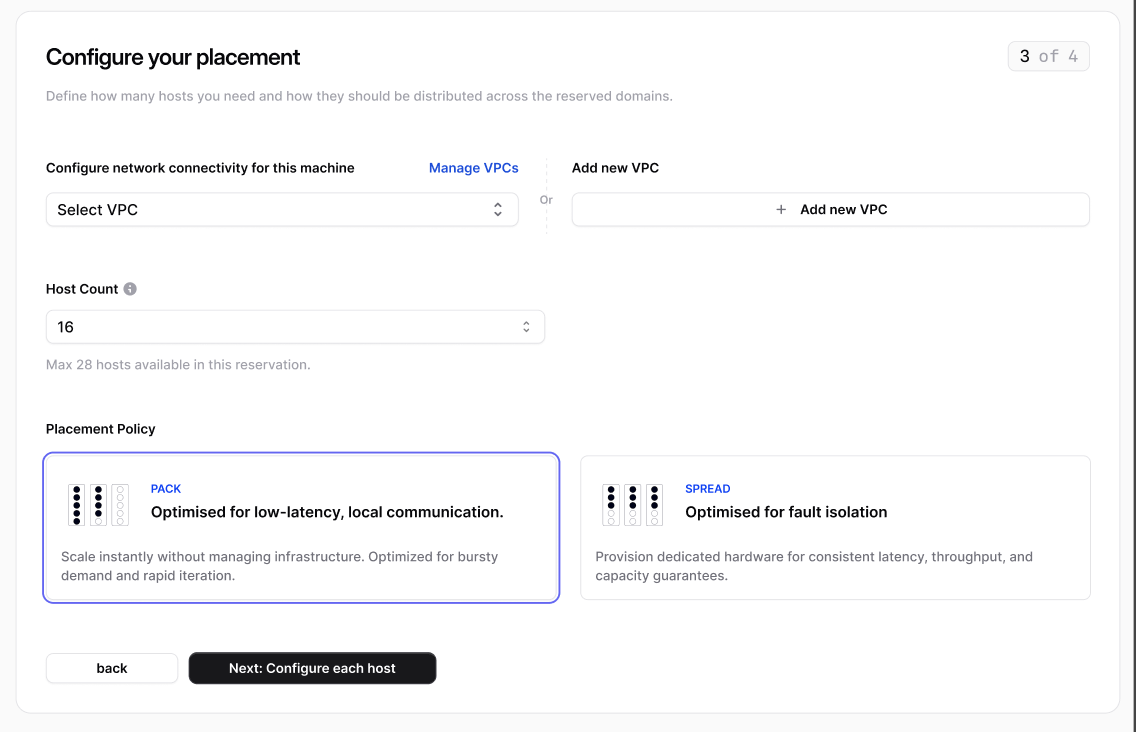
Define how many hosts you need and how they should be distributed:
* **Configure network connectivity** — choose the VPC the placement's servers attach to.
* **Host Count** — the number of hosts to allocate. The maximum is the capacity still free in the reservation.
* **Placement Policy** — choose **Pack** or **Spread** (see [Placement policy](#placement-policy)).
If the reservation has no free capacity, host count is unavailable. Free up capacity by deleting an existing placement, or reserve more capacity, before creating a new placement.
 Choose what every host in the placement runs:
* **Security groups** — attach one or more security groups from the selected VPC to control network traffic.
* **OS Image** — select the operating system and default packages installed on every node.
Attach an [SSH certificate authority](/docs/compute/ssh-certificate-authorities) that authorizes login on every host in this placement. Select an existing SSH key from your organization, or add a new one.
Optionally paste a **cloud-config** YAML file to customize your cluster at first boot. This is applied only during creation and can't be changed later.
Review the summary—name, host count, policy, VPC, and OS image—then click **Create Placement**. The platform allocates the hosts, programs the InfiniBand fabric, and launches one server per host.
**Provisioning time scales with placement size.** The servers in a placement provision in parallel, so larger placements take longer to become fully ready—expect longer waits as host count grows. Provisioning throughput also decreases as you scale up, because the work is shared across the fabric. Track progress from each server's status in the **Servers** tab.
## View a placement
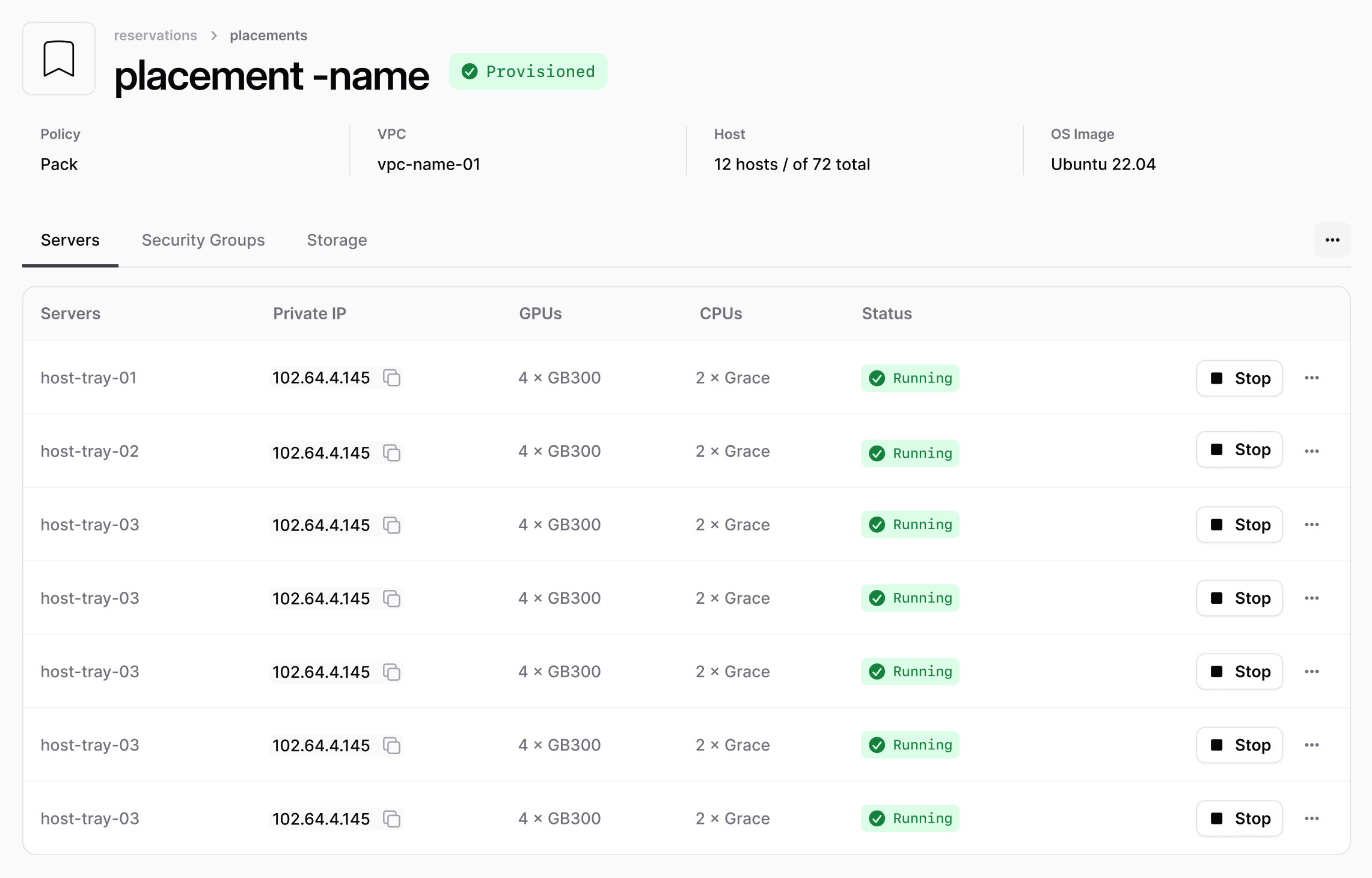
Open a placement from the reservation's **Placements** tab. The detail view shows a header strip with the policy, VPC, host readiness, and OS image, plus two tabs:
* **Servers** — every server the placement launched, with its private IP, GPU and CPU counts, and status.
* **Security Groups** — the security groups attached to the placement.
Choose what every host in the placement runs:
* **Security groups** — attach one or more security groups from the selected VPC to control network traffic.
* **OS Image** — select the operating system and default packages installed on every node.
Attach an [SSH certificate authority](/docs/compute/ssh-certificate-authorities) that authorizes login on every host in this placement. Select an existing SSH key from your organization, or add a new one.
Optionally paste a **cloud-config** YAML file to customize your cluster at first boot. This is applied only during creation and can't be changed later.
Review the summary—name, host count, policy, VPC, and OS image—then click **Create Placement**. The platform allocates the hosts, programs the InfiniBand fabric, and launches one server per host.
**Provisioning time scales with placement size.** The servers in a placement provision in parallel, so larger placements take longer to become fully ready—expect longer waits as host count grows. Provisioning throughput also decreases as you scale up, because the work is shared across the fabric. Track progress from each server's status in the **Servers** tab.
## View a placement
Open a placement from the reservation's **Placements** tab. The detail view shows a header strip with the policy, VPC, host readiness, and OS image, plus two tabs:
* **Servers** — every server the placement launched, with its private IP, GPU and CPU counts, and status.
* **Security Groups** — the security groups attached to the placement.
 ## Manage servers
The **Servers** tab lists every server the placement launched. Each server reports a provisioning status:
| Status | Description |
| ------------------ | ------------------------------ |
| **Provisioning** | The server is being created |
| **Provisioned** | The server is ready for use |
| **Error** | The server failed to provision |
| **Deprovisioning** | The server is being torn down |
**Actions you can take:**
* **Stop** a server to shut it down.
* **Reboot** a server—choose a **soft reboot** (graceful) or a hard reboot (power cycle).
Servers are managed as part of the placement. They can't be deleted individually—deleting the placement removes all of its servers.
## Delete a placement
Deleting a placement stops and removes all of its servers and releases their hosts back to the reservation.
Go to the placement's detail view, open the actions menu, and choose **Delete Placement**.
Confirm by entering the placement's name. If the placement still has active servers, they'll be **stopped and deleted**—this is the only way to release those hosts. Deletion is permanent and can't be undone.
**De-provisioning can take a while.** Each server goes through a full clean-up cycle before its host is released, so deleting a large placement may take some time. You don't have to wait for it to finish—another placement can be created in the same reservation in parallel while a placement de-provisions.
Once a placement is deleted and its hosts are released, that capacity is free for a new placement in the same reservation.
## Next steps
* Review [reservations](/docs/compute/reservations) and how capacity is reserved.
* Manage placements and servers from the command line with the [CLI](/docs/cli/overview).
* Explore the full [Placement API reference](/api-reference/placements/list-placements).
## Manage servers
The **Servers** tab lists every server the placement launched. Each server reports a provisioning status:
| Status | Description |
| ------------------ | ------------------------------ |
| **Provisioning** | The server is being created |
| **Provisioned** | The server is ready for use |
| **Error** | The server failed to provision |
| **Deprovisioning** | The server is being torn down |
**Actions you can take:**
* **Stop** a server to shut it down.
* **Reboot** a server—choose a **soft reboot** (graceful) or a hard reboot (power cycle).
Servers are managed as part of the placement. They can't be deleted individually—deleting the placement removes all of its servers.
## Delete a placement
Deleting a placement stops and removes all of its servers and releases their hosts back to the reservation.
Go to the placement's detail view, open the actions menu, and choose **Delete Placement**.
Confirm by entering the placement's name. If the placement still has active servers, they'll be **stopped and deleted**—this is the only way to release those hosts. Deletion is permanent and can't be undone.
**De-provisioning can take a while.** Each server goes through a full clean-up cycle before its host is released, so deleting a large placement may take some time. You don't have to wait for it to finish—another placement can be created in the same reservation in parallel while a placement de-provisions.
Once a placement is deleted and its hosts are released, that capacity is free for a new placement in the same reservation.
## Next steps
* Review [reservations](/docs/compute/reservations) and how capacity is reserved.
* Manage placements and servers from the command line with the [CLI](/docs/cli/overview).
* Explore the full [Placement API reference](/api-reference/placements/list-placements).