> ## Documentation Index
> Fetch the complete documentation index at: https://docs.nscale.com/llms.txt
> Use this file to discover all available pages before exploring further.
# Topology View
> See your organization's allocated bare-metal capacity as a map of regions, pods, NVLink domains, and hosts, colored by reservation or placement.
The **Topology View** is a visual map of the bare-metal GPU capacity allocated to your organization. It lays capacity out the way it is physically organized, region → pod → NVLink domain → host, and colors each host by the [reservation](/docs/compute/reservations) or [placement](/docs/compute/placements) that holds it.
**Organization-level access required.** The Topology View needs organization-level read access to reservation topology. A project-level grant isn't enough. See [Permissions](#permissions).
## Summary
This page explains where to find the Topology View in the Nscale Console, how to read the grid and its legends, how to filter it down to single reservations and the placements within them, and what the different states mean.
Use this guide if you:
* Want to see **which reservations and placements hold which hosts** across your organization or project
* Need to check how a **Pack** or **Spread** placement actually landed across NVLink domains
* Are planning a new reservation and want to see **allocated and unreserved capacity** at a glance
## Where to find it
The **Topology View** tab appears in three locations. Each one shows the same grid at a different scope:
| Page | How to get there | What it shows |
| - | - | - |
| **Organization** | Go to **Reservations** in the organization sidebar, then select the **Topology View** tab | Every project in the organization. |
| **Project** | In a project, under **Compute**, select **Reservations**, then open the **Topology View** tab | Shows all reservations in the project. When a reservation is selected or filtered, its placements are shown. Hosts belonging to other projects appear in grey. |
| **Reservation detail** | Open a reservation and select its **Topology View** tab (next to **Overview** and **Placements**), or select **See topology** on the reservation's **Capacity** card | Capacity for that one reservation only: its placements, how many hosts each holds, and how many hosts are unplaced or free. |
 ## Reading the grid
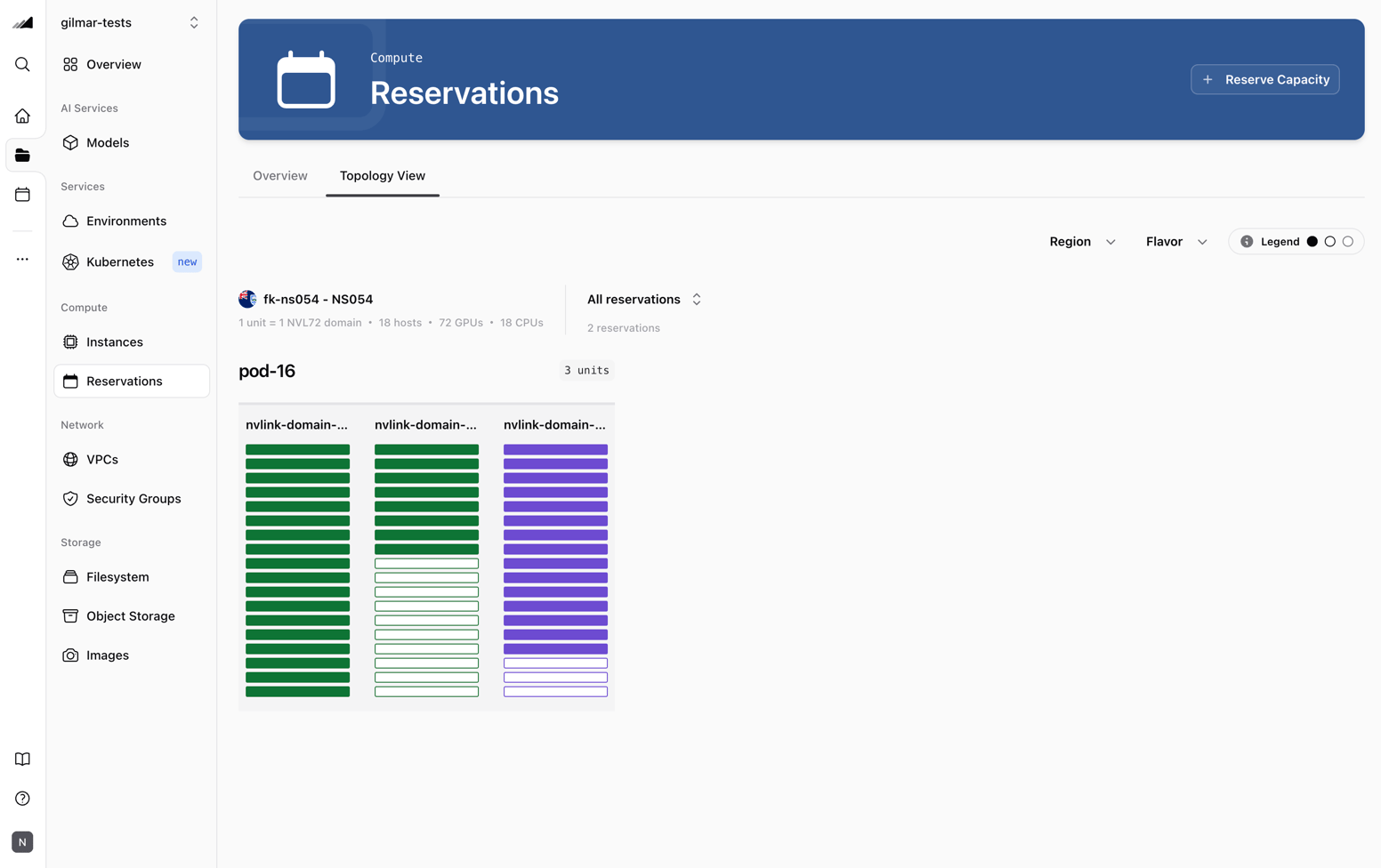
The grid is split into one section per region and flavour. Each section is laid out from the top down:
1. **Section header.** The region and flavour, for example ` - GB300`, followed by the unit shape: `1 unit = 1 NVL72 domain`, then the hosts, GPUs, and CPUs in one unit.
2. **Pods.** Each pod is labeled with a badge showing how many units it holds.
3. **Domain cards.** One card per NVLink domain. A domain is one [reservation unit](/docs/compute/reservations#how-reservations-fit-together).
4. **Host bars.** One bar per host in the domain.
How many bars a domain card holds depends on the flavour. Each card has one bar per host in the unit, and the section header shows how many hosts that is.
## Legend
Hover **Legend** in the toolbar to see what each bar style means. When a reservation is selected, the legend changes to explain which placement each bar's color represents, instead of which reservation.
### Colored by reservation
In the organization and project Topology Views, the grid shows each reservation in a different color when the page loads:
| Key | Appearance | Meaning |
| - | - | - |
| **Reserved & placed** | Filled in a single color representing the reservation | The host is reserved, and a placement is using it. |
| **Reserved & unplaced** | Outlined in the reservation's color | The host is reserved but no placement is using it. |
| **Other projects** | Grey fill | The host is reserved by another project, or by a project you don't have permission to view. Only shown when the view contains such hosts. |
| **Unreserved** | Dark grey outline, no fill | The host is part of your organization's allocated capacity, but no reservation currently claims it. |
### Colored by placement
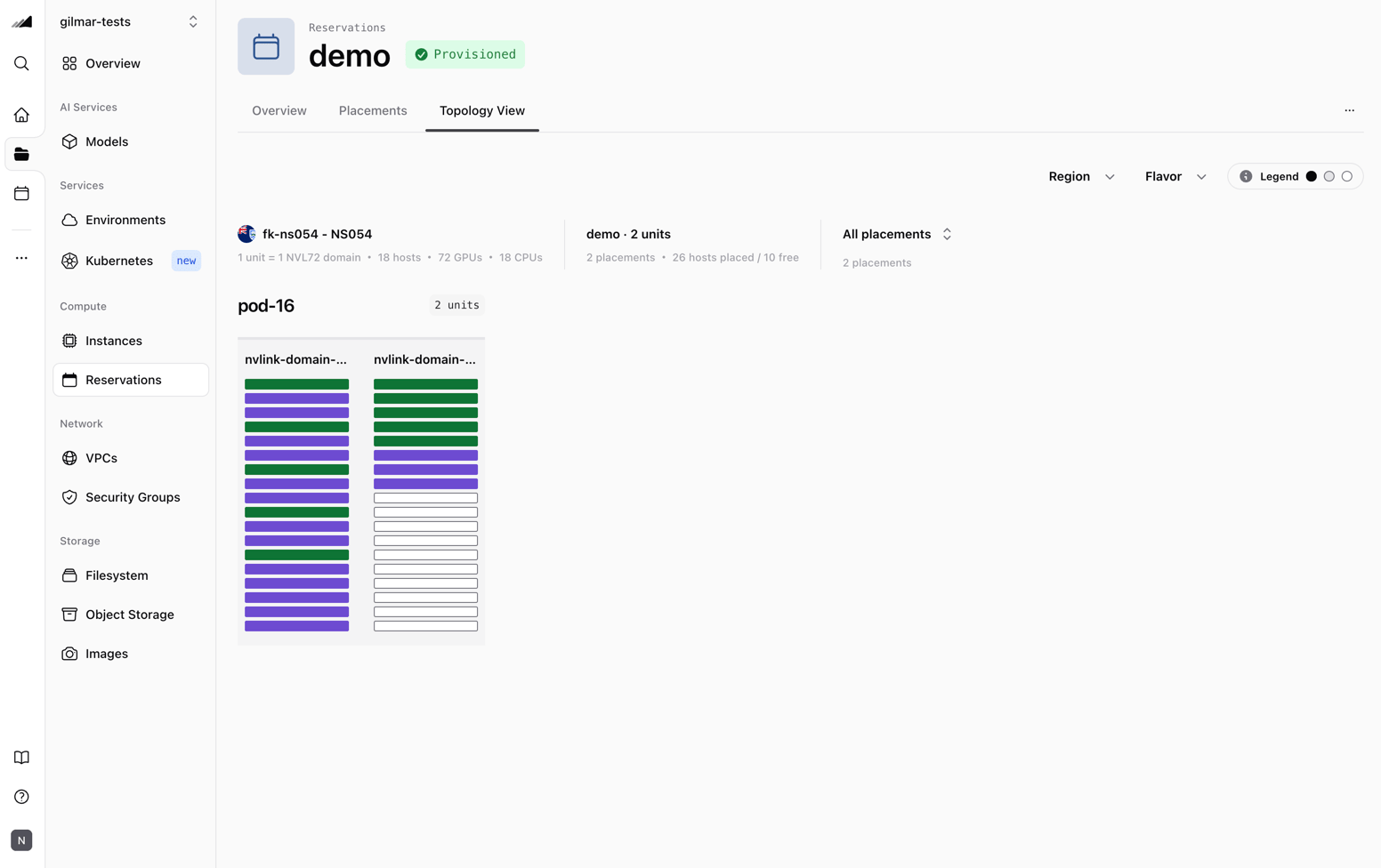
Select a reservation either by clicking it in the grid or by using the reservation filter. The grid then updates to show that reservation's placements, with each color representing a different placement.
Use the placement filter to focus on a specific placement. Hover over a host bar to view details about the placement that holds it.
| Key | Appearance | Meaning |
| - | - | - |
| **Placed** | Filled with the placement's color | The host is running a server for this placement. The key reads **Selected placement** once you pick a single placement. |
| **Placed elsewhere** | Grey fill | The host is running a server for a different placement or reservation, or it's reserved by a project you can't read. |
| **Not placed** | Dark grey outline, no fill | No placement is running on the host, whether it is reserved or unreserved. |
## Reading the grid
The grid is split into one section per region and flavour. Each section is laid out from the top down:
1. **Section header.** The region and flavour, for example ` - GB300`, followed by the unit shape: `1 unit = 1 NVL72 domain`, then the hosts, GPUs, and CPUs in one unit.
2. **Pods.** Each pod is labeled with a badge showing how many units it holds.
3. **Domain cards.** One card per NVLink domain. A domain is one [reservation unit](/docs/compute/reservations#how-reservations-fit-together).
4. **Host bars.** One bar per host in the domain.
How many bars a domain card holds depends on the flavour. Each card has one bar per host in the unit, and the section header shows how many hosts that is.
## Legend
Hover **Legend** in the toolbar to see what each bar style means. When a reservation is selected, the legend changes to explain which placement each bar's color represents, instead of which reservation.
### Colored by reservation
In the organization and project Topology Views, the grid shows each reservation in a different color when the page loads:
| Key | Appearance | Meaning |
| - | - | - |
| **Reserved & placed** | Filled in a single color representing the reservation | The host is reserved, and a placement is using it. |
| **Reserved & unplaced** | Outlined in the reservation's color | The host is reserved but no placement is using it. |
| **Other projects** | Grey fill | The host is reserved by another project, or by a project you don't have permission to view. Only shown when the view contains such hosts. |
| **Unreserved** | Dark grey outline, no fill | The host is part of your organization's allocated capacity, but no reservation currently claims it. |
### Colored by placement
Select a reservation either by clicking it in the grid or by using the reservation filter. The grid then updates to show that reservation's placements, with each color representing a different placement.
Use the placement filter to focus on a specific placement. Hover over a host bar to view details about the placement that holds it.
| Key | Appearance | Meaning |
| - | - | - |
| **Placed** | Filled with the placement's color | The host is running a server for this placement. The key reads **Selected placement** once you pick a single placement. |
| **Placed elsewhere** | Grey fill | The host is running a server for a different placement or reservation, or it's reserved by a project you can't read. |
| **Not placed** | Dark grey outline, no fill | No placement is running on the host, whether it is reserved or unreserved. |
 ## Interacting with the grid
### Hover for details
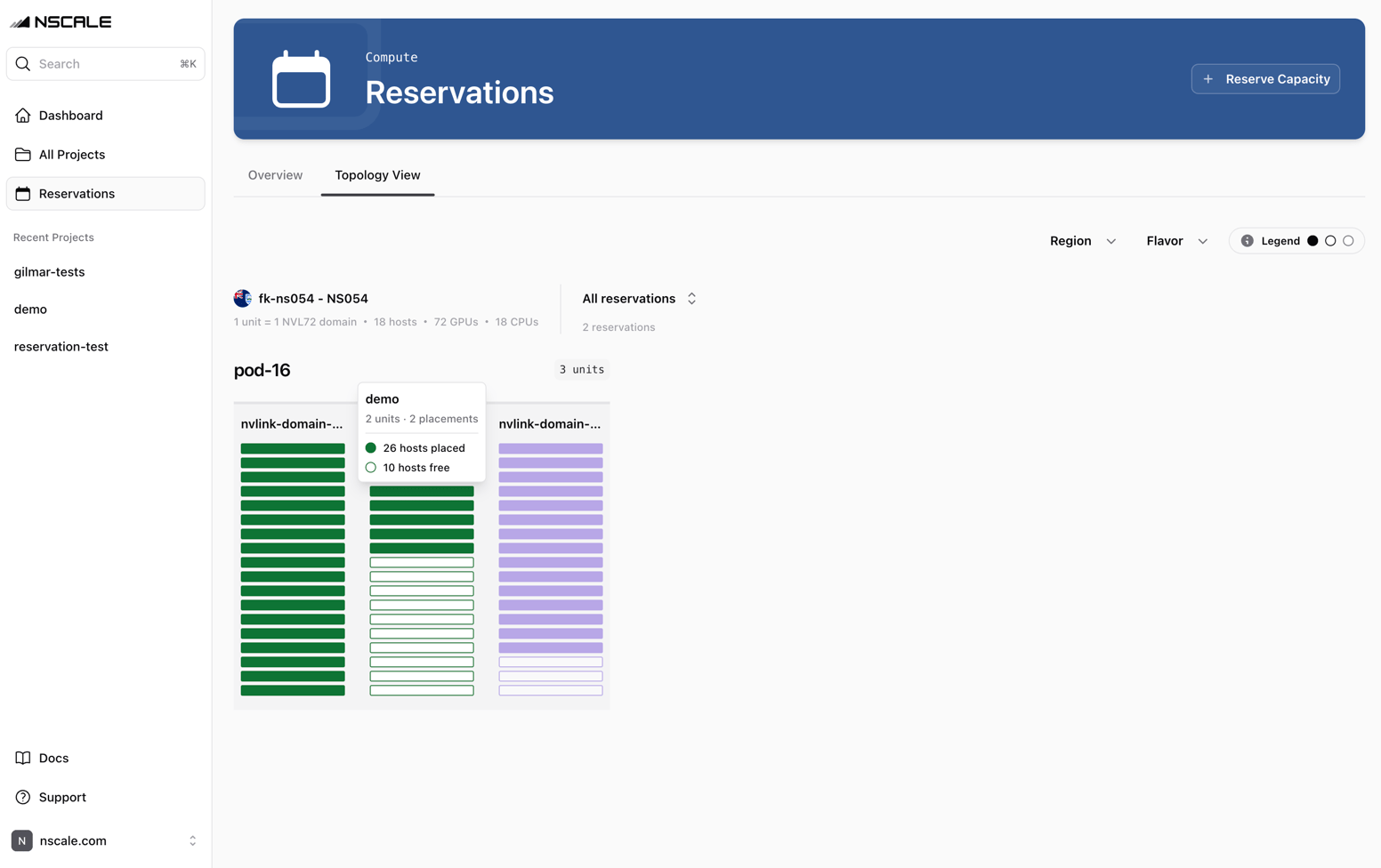
Hover over a host bar to highlight all hosts held by the same reservation or placement. The rest of the grid dims, and a tooltip shows details about the item you're hovering over:
| Hovering over | Tooltip shows |
| - | - |
| A reservation | Its name, units and placements, then the number of hosts placed and the number free. |
| A placement | Its name, host count, and policy, for example `4 hosts · pack policy`. |
| **Other projects** | The units held by other projects, with the note *"Placement details aren't available because you don't have the required permissions."* |
| **Unreserved** | The number of unreserved units and the free hosts they contain. |
## Interacting with the grid
### Hover for details
Hover over a host bar to highlight all hosts held by the same reservation or placement. The rest of the grid dims, and a tooltip shows details about the item you're hovering over:
| Hovering over | Tooltip shows |
| - | - |
| A reservation | Its name, units and placements, then the number of hosts placed and the number free. |
| A placement | Its name, host count, and policy, for example `4 hosts · pack policy`. |
| **Other projects** | The units held by other projects, with the note *"Placement details aren't available because you don't have the required permissions."* |
| **Unreserved** | The number of unreserved units and the free hosts they contain. |
 ### Click to open
Click a bar to open what it belongs to:
* When the grid is colored by reservation, select a reservation either using the reservation filter or by clicking it in the grid. The view then switches to show that reservation's placements. Clicking opens the reservation's own **Topology View** tab, while the filter keeps you on the current page.
* When the grid is colored by placement, a click opens the placement's detail page.
Bars you don't have access to, such as **Other projects**, don't open anything.
### Filter the view
The Topology View is broken down by each region and flavour, with each section having its own filter header.
You can use the overall **Region** and **Flavor** filters in the toolbar to filter the entire view across all sections. Both are multi-select.
Within each region and flavour section, you can also use the section-level filters to filter its reservations and placements:
* The reservation picker in each section header, labeled **All reservations** by default, lets you select a single reservation. Once selected, the grid shows placement coloring for that reservation.
* The placement picker, labeled **All placements** by default, appears once a reservation is selected and placements are available. It lets you select a single placement, with the label showing its position in the list, for example `1/3 training`.
* The arrow button next to a selected reservation or placement opens its detail page.
* **Clear Filters** resets every filter at once.
The reservation and placement you pick are kept in the page URL, so you can share a filtered view as a link. The Region and Flavor filters aren't saved in the URL.
### Click to open
Click a bar to open what it belongs to:
* When the grid is colored by reservation, select a reservation either using the reservation filter or by clicking it in the grid. The view then switches to show that reservation's placements. Clicking opens the reservation's own **Topology View** tab, while the filter keeps you on the current page.
* When the grid is colored by placement, a click opens the placement's detail page.
Bars you don't have access to, such as **Other projects**, don't open anything.
### Filter the view
The Topology View is broken down by each region and flavour, with each section having its own filter header.
You can use the overall **Region** and **Flavor** filters in the toolbar to filter the entire view across all sections. Both are multi-select.
Within each region and flavour section, you can also use the section-level filters to filter its reservations and placements:
* The reservation picker in each section header, labeled **All reservations** by default, lets you select a single reservation. Once selected, the grid shows placement coloring for that reservation.
* The placement picker, labeled **All placements** by default, appears once a reservation is selected and placements are available. It lets you select a single placement, with the label showing its position in the list, for example `1/3 training`.
* The arrow button next to a selected reservation or placement opens its detail page.
* **Clear Filters** resets every filter at once.
The reservation and placement you pick are kept in the page URL, so you can share a filtered view as a link. The Region and Flavor filters aren't saved in the URL.
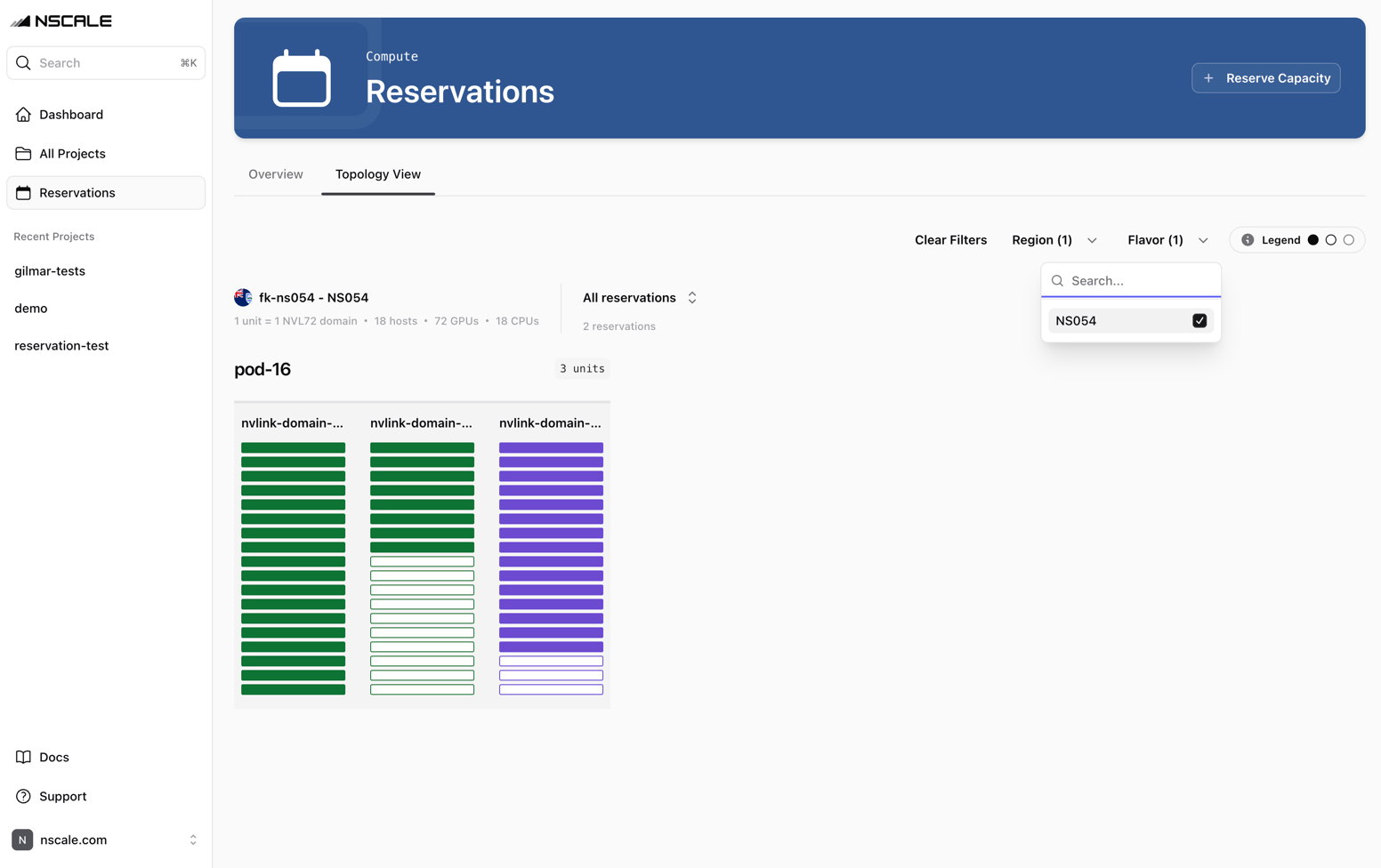 Filtering always keeps whole domain cards. If you pick a placement that uses three hosts in an 18-host domain, the whole domain stays on screen so you can see the rest of the unit around it.
## Pack and spread in the grid
The Topology View is the easiest way to see how a [placement policy](/docs/compute/placements#placement-policy) was applied and how the resulting placements were distributed:
* **Pack** placements show up as contiguous runs of bars, filling one domain before moving to the next.
* **Spread** placements show up scattered evenly across the reservation's domains.
Nscale Kubernetes Service (NKS) node pools backed by a reservation run on a placement, so they appear here as ordinary placements.
## How colors are assigned
The grid uses a palette of **eight colors**:
* Colors repeat once more than eight reservations or placements are in view.
* Neighboring bars rarely share a color, so where two reservations or placements meet you can almost always see the boundary.
* A color identifies a reservation or placement only within the current view. It can change after the data refreshes, when you apply a filter, or when you switch between reservation and placement coloring. Use the tooltip or the picker to confirm which one you're looking at.
## Reserve capacity from the organization page
Because the organization **Reservations** page isn't tied to a specific project, selecting **Reserve Capacity** first opens a dialog asking you to choose which project the reservation should be created in:
Click **Reserve Capacity** in the page header. If the organization has no allocated topology yet, the Topology View's empty state has a **Reserve Capacity** button that opens the same dialog.
The dialog lists only the projects you're allowed to reserve capacity in. Use **Search Project** to narrow the list, then select one.
The console opens the reservation wizard in that project. Continue from [Reserve capacity](/docs/compute/reservations#reserve-capacity).
If there are no projects you can reserve in, the dialog shows **No projects available** instead.
## Permissions
The Topology View requires **organization-level** read access to `reservation:topology`. A project-level grant alone is not sufficient, even when you open the tab from a project page.
The **reservation-capacity-manager** and **reservation-capacity-reader** roles include this permission when assigned at organization level. See [Roles and groups](/docs/manage/roles-and-groups#reservations).
* **Without this permission**, the **Topology View** tab is hidden on every page, and the **See topology** button is hidden from the **Capacity** card.
* **If the request is refused**, the tab shows **Topology unavailable**: *"Viewing allocated topology needs organization-level access to reservations. Ask an organization administrator for access."*
* **Hosts in projects you can't read** still appear, so the grid reflects everything allocated to the organization, but they're drawn as **Other projects** with no reservation or placement details.
## Empty states
| Message | When you see it | What to do |
| - | - | - |
| **No allocated topology** | Nothing has been allocated to the organization yet. A project with no reservations of its own still shows the organization's capacity, with other projects' hosts in grey, so this state doesn't mean the project is empty. | Click **Reserve Capacity** to create a reservation. |
| **No allocated hosts for this reservation** | On a reservation's **Topology View** tab, when the reservation doesn't hold any allocated hosts yet. | Wait for the reservation to finish provisioning. |
| **No matching topology** | Your filters hide every host. | Clear a filter, or click **Clear Filters**, to see the rest of the allocated capacity. |
| **Topology unavailable** | You don't have organization-level topology access. | Ask an organization administrator for access. |
## Limitations
* **Mouse only.** Host bars can't be focused with the keyboard. To open a reservation or placement without a mouse, select it in the picker and use the arrow button next to it.
* **No server details.** Bars show which reservation and placement hold a host, not the server running on it. Open the placement to see its servers.
* **Region and Flavor filters reset on reload.** Only the reservation and placement selection is kept in the URL.
* **Refreshes every 30 seconds.** The grid updates on its own, so a newly created placement can take up to 30 seconds to appear.
## Next steps
* Learn how capacity is structured in [Reservations](/docs/compute/reservations).
* Choose between Pack and Spread in [Placements](/docs/compute/placements).
* Grant organization-level access in [Roles and groups](/docs/manage/roles-and-groups).
Filtering always keeps whole domain cards. If you pick a placement that uses three hosts in an 18-host domain, the whole domain stays on screen so you can see the rest of the unit around it.
## Pack and spread in the grid
The Topology View is the easiest way to see how a [placement policy](/docs/compute/placements#placement-policy) was applied and how the resulting placements were distributed:
* **Pack** placements show up as contiguous runs of bars, filling one domain before moving to the next.
* **Spread** placements show up scattered evenly across the reservation's domains.
Nscale Kubernetes Service (NKS) node pools backed by a reservation run on a placement, so they appear here as ordinary placements.
## How colors are assigned
The grid uses a palette of **eight colors**:
* Colors repeat once more than eight reservations or placements are in view.
* Neighboring bars rarely share a color, so where two reservations or placements meet you can almost always see the boundary.
* A color identifies a reservation or placement only within the current view. It can change after the data refreshes, when you apply a filter, or when you switch between reservation and placement coloring. Use the tooltip or the picker to confirm which one you're looking at.
## Reserve capacity from the organization page
Because the organization **Reservations** page isn't tied to a specific project, selecting **Reserve Capacity** first opens a dialog asking you to choose which project the reservation should be created in:
Click **Reserve Capacity** in the page header. If the organization has no allocated topology yet, the Topology View's empty state has a **Reserve Capacity** button that opens the same dialog.
The dialog lists only the projects you're allowed to reserve capacity in. Use **Search Project** to narrow the list, then select one.
The console opens the reservation wizard in that project. Continue from [Reserve capacity](/docs/compute/reservations#reserve-capacity).
If there are no projects you can reserve in, the dialog shows **No projects available** instead.
## Permissions
The Topology View requires **organization-level** read access to `reservation:topology`. A project-level grant alone is not sufficient, even when you open the tab from a project page.
The **reservation-capacity-manager** and **reservation-capacity-reader** roles include this permission when assigned at organization level. See [Roles and groups](/docs/manage/roles-and-groups#reservations).
* **Without this permission**, the **Topology View** tab is hidden on every page, and the **See topology** button is hidden from the **Capacity** card.
* **If the request is refused**, the tab shows **Topology unavailable**: *"Viewing allocated topology needs organization-level access to reservations. Ask an organization administrator for access."*
* **Hosts in projects you can't read** still appear, so the grid reflects everything allocated to the organization, but they're drawn as **Other projects** with no reservation or placement details.
## Empty states
| Message | When you see it | What to do |
| - | - | - |
| **No allocated topology** | Nothing has been allocated to the organization yet. A project with no reservations of its own still shows the organization's capacity, with other projects' hosts in grey, so this state doesn't mean the project is empty. | Click **Reserve Capacity** to create a reservation. |
| **No allocated hosts for this reservation** | On a reservation's **Topology View** tab, when the reservation doesn't hold any allocated hosts yet. | Wait for the reservation to finish provisioning. |
| **No matching topology** | Your filters hide every host. | Clear a filter, or click **Clear Filters**, to see the rest of the allocated capacity. |
| **Topology unavailable** | You don't have organization-level topology access. | Ask an organization administrator for access. |
## Limitations
* **Mouse only.** Host bars can't be focused with the keyboard. To open a reservation or placement without a mouse, select it in the picker and use the arrow button next to it.
* **No server details.** Bars show which reservation and placement hold a host, not the server running on it. Open the placement to see its servers.
* **Region and Flavor filters reset on reload.** Only the reservation and placement selection is kept in the URL.
* **Refreshes every 30 seconds.** The grid updates on its own, so a newly created placement can take up to 30 seconds to appear.
## Next steps
* Learn how capacity is structured in [Reservations](/docs/compute/reservations).
* Choose between Pack and Spread in [Placements](/docs/compute/placements).
* Grant organization-level access in [Roles and groups](/docs/manage/roles-and-groups).