

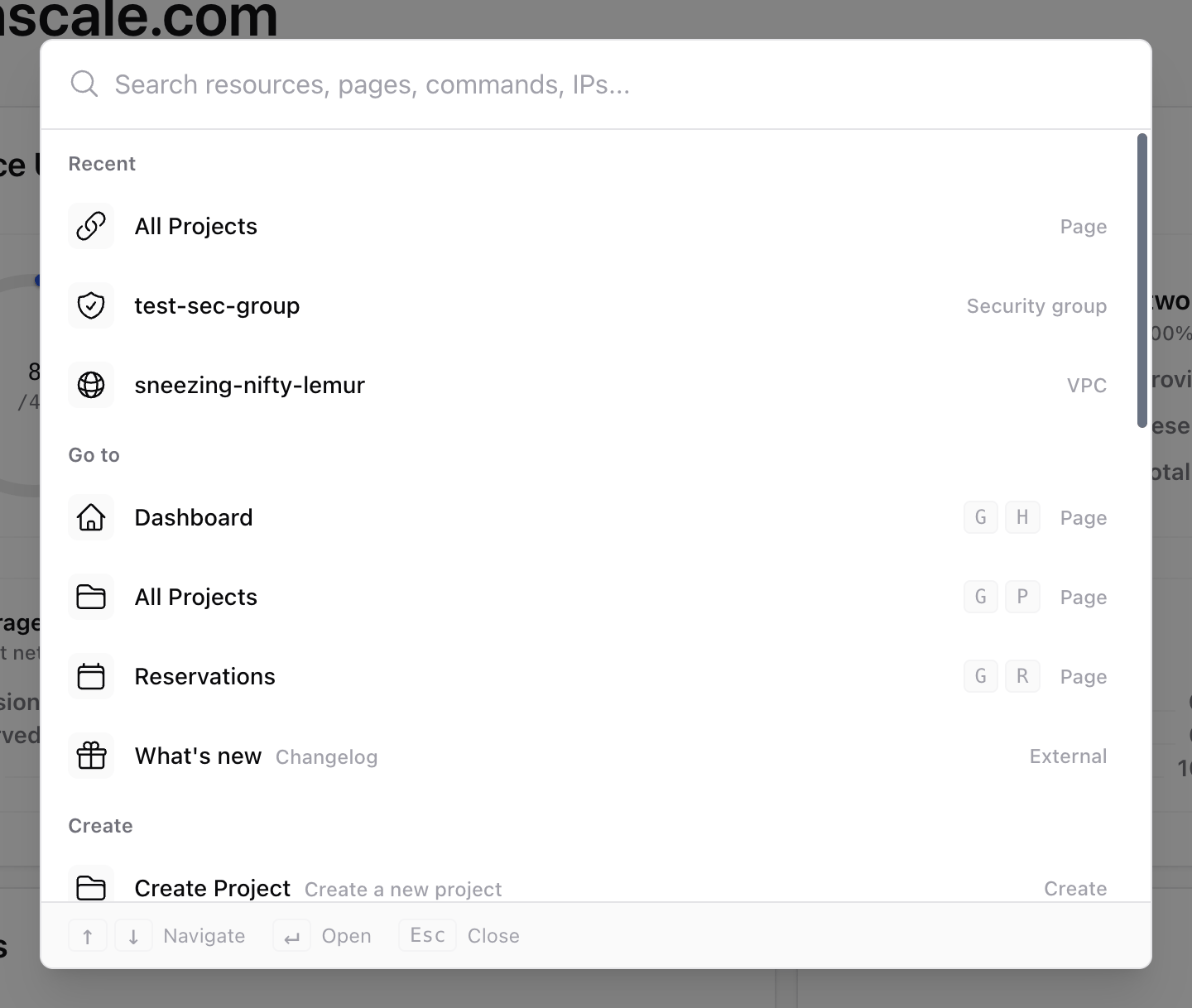
Open quick search
- On macOS, press Cmd+K.
- On Windows and Linux, press Ctrl+K.
- Or select Search at the top of the sidebar.
Search for resources
Start typing and results appear as you go. You don’t need the full name: each word you type can match any part of a name, ID or other detail, sotrain 01 finds training-node-01. Small typos are forgiven too, so traning still finds it. Matched text is highlighted in each row.
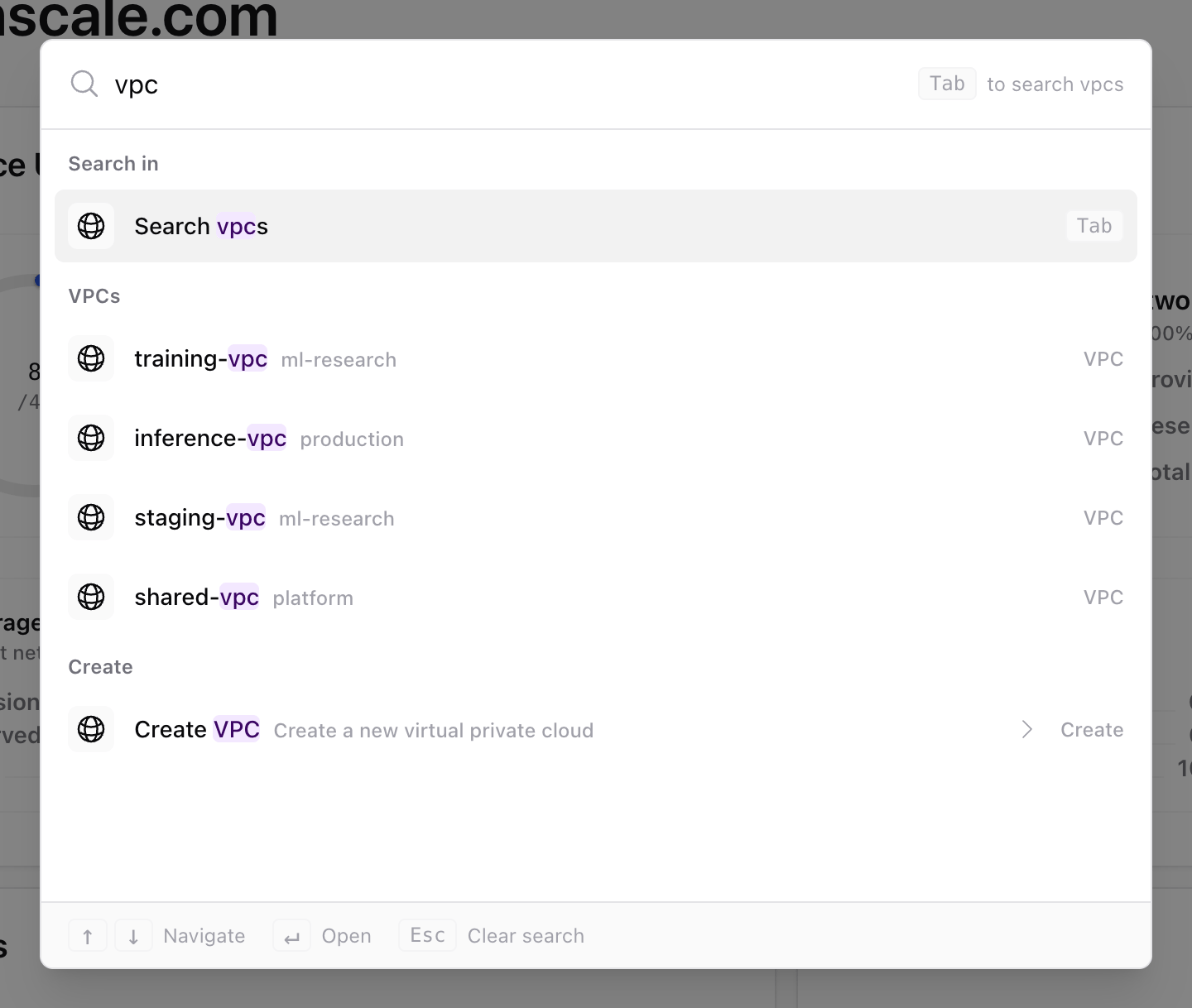
- Resources such as projects, instances, Kubernetes clusters, VPCs, security groups, filesystems, object storage, reservations, placements and models.
- Pages in the console, including settings, billing and service tokens.
- Commands such as changing the theme, copying the page URL, copying your organisation ID and signing out.
You only see resources and pages that you have permission to view, so the list may differ from a colleague’s.
Search by ID, address or hostname
Paste an identifier and quick search recognises what it is. A badge in the search box shows what it found.Filter results
Type a filter askey:value followed by a space, and it turns into a chip that narrows the results. Start typing a key, such as sta, and quick search suggests the keys and their values as you go.
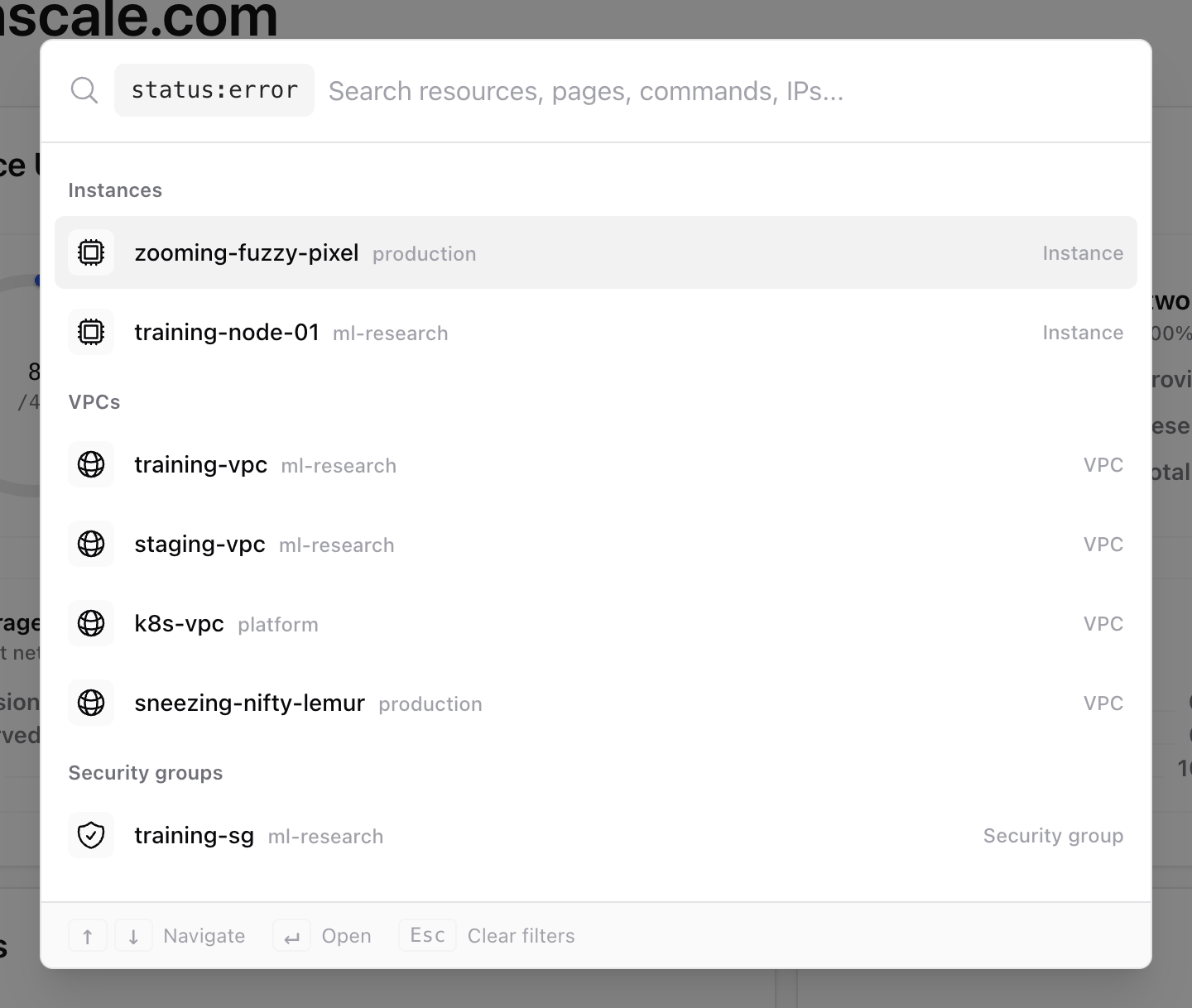
You can combine filters and text. For example,
status:error type:instance gpu lists instances in an error state whose name or details match gpu. While a filter you typed is applied, only resources are listed; pages and commands come back when you remove it.
To remove the last chip, press Backspace in an empty search box.
Search inside one resource type
A scope limits the search to a single resource type, such as instances or VPCs. This is useful when a name matches several kinds of resource, or when you want to browse everything of one type.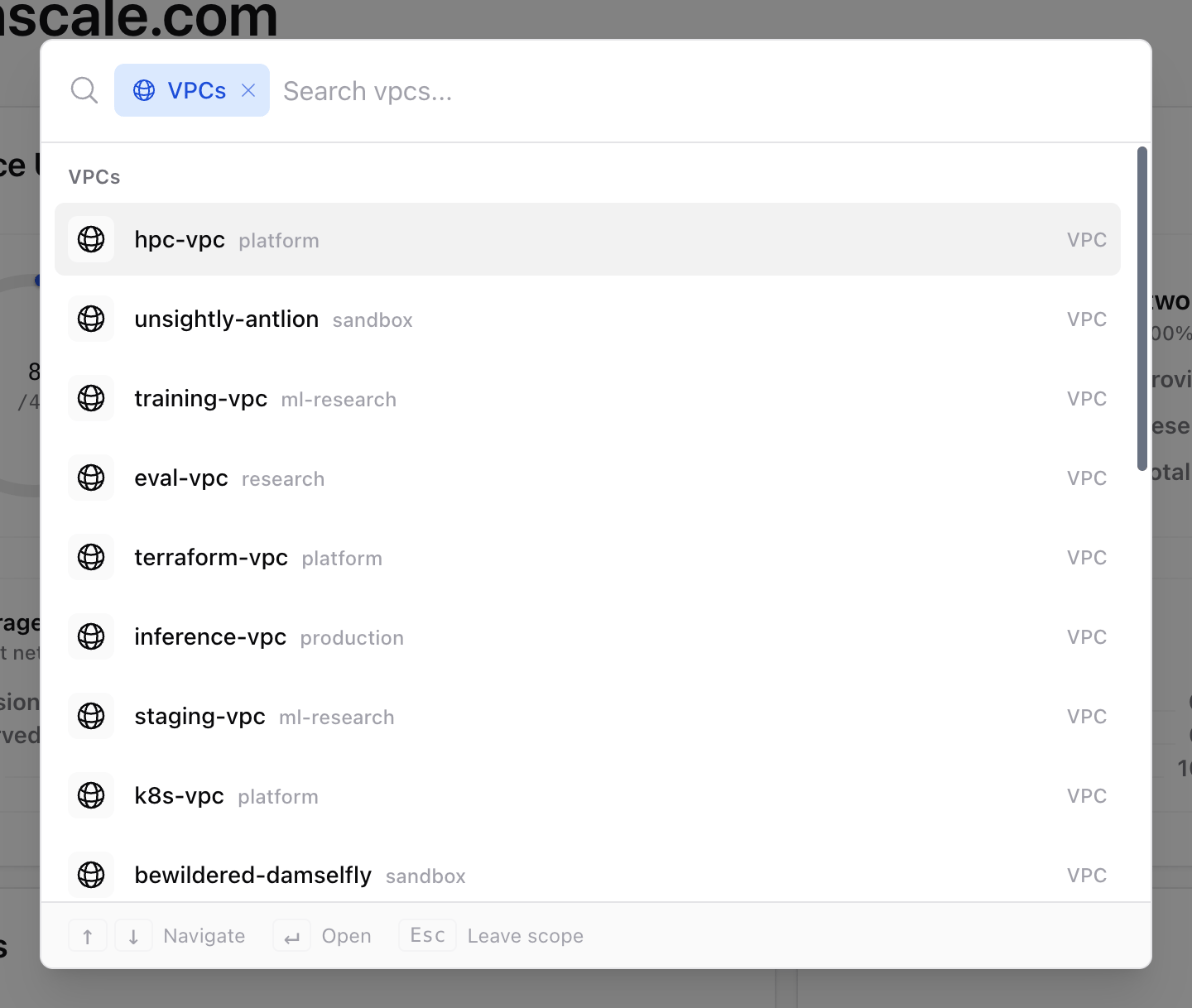
- Type the name of the resource type, such as
instancesorvpc. Common alternatives work too, for examplevm,k8s,sg,bucketornodes. - Press Tab. The scope appears at the start of the search box.
- Type to search within it, or leave the box empty to list everything of that type.
Recent items
Quick search remembers the pages and resources you open, whether you reached them through search or by browsing the console. They are listed under Recent each time you open it, so you can get back to what you were working on in a couple of keystrokes. Recent items are kept per organisation in your browser. To remove one, highlight it and press Cmd+Backspace (Ctrl+Backspace on Windows and Linux).Create resources
Typecreate or new, followed by what you want to make, to see the create actions available to you. For example, new instance or create vpc.
If you are already inside a project, the create action opens in that project. Otherwise, quick search asks you to choose a project first.
Run commands
Quick search also runs a few everyday commands:- Change theme switches between light, dark and system themes.
- Copy page URL copies a link to the page you are on.
- Type
org idto copy your organisation’s ID, for example when contacting support. - Sign out signs you out of the console.
Calculator
Type a sum or a conversion and the answer appears at the top of the results. Press Enter to copy it.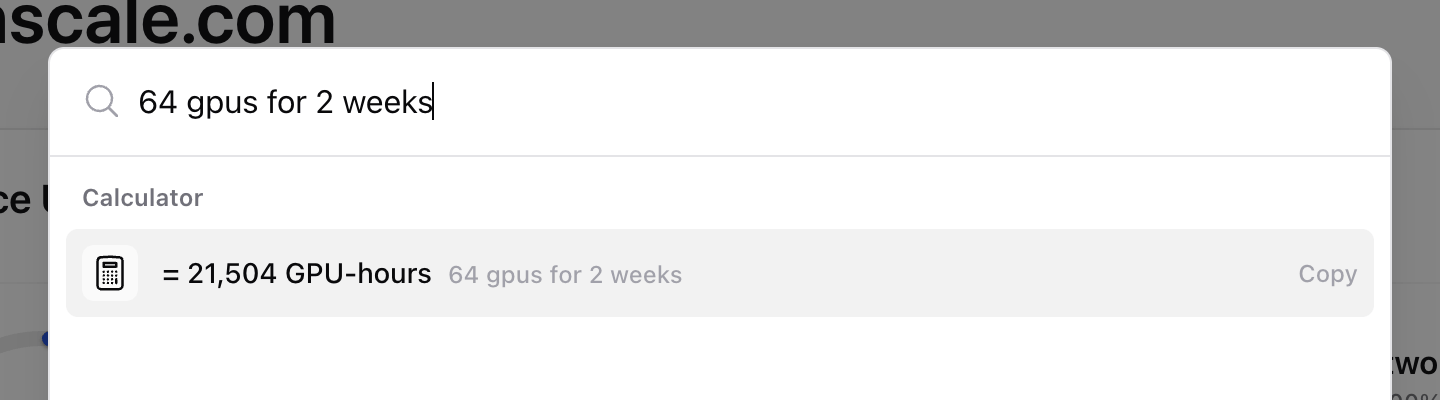
GPU-hours accept hours, days, weeks, months and years. Storage conversions accept both decimal units (KB, MB, GB, TB, PB) and binary units (KiB, MiB, GiB, TiB, PiB).
Keyboard shortcuts
Type? in quick search to list every shortcut.
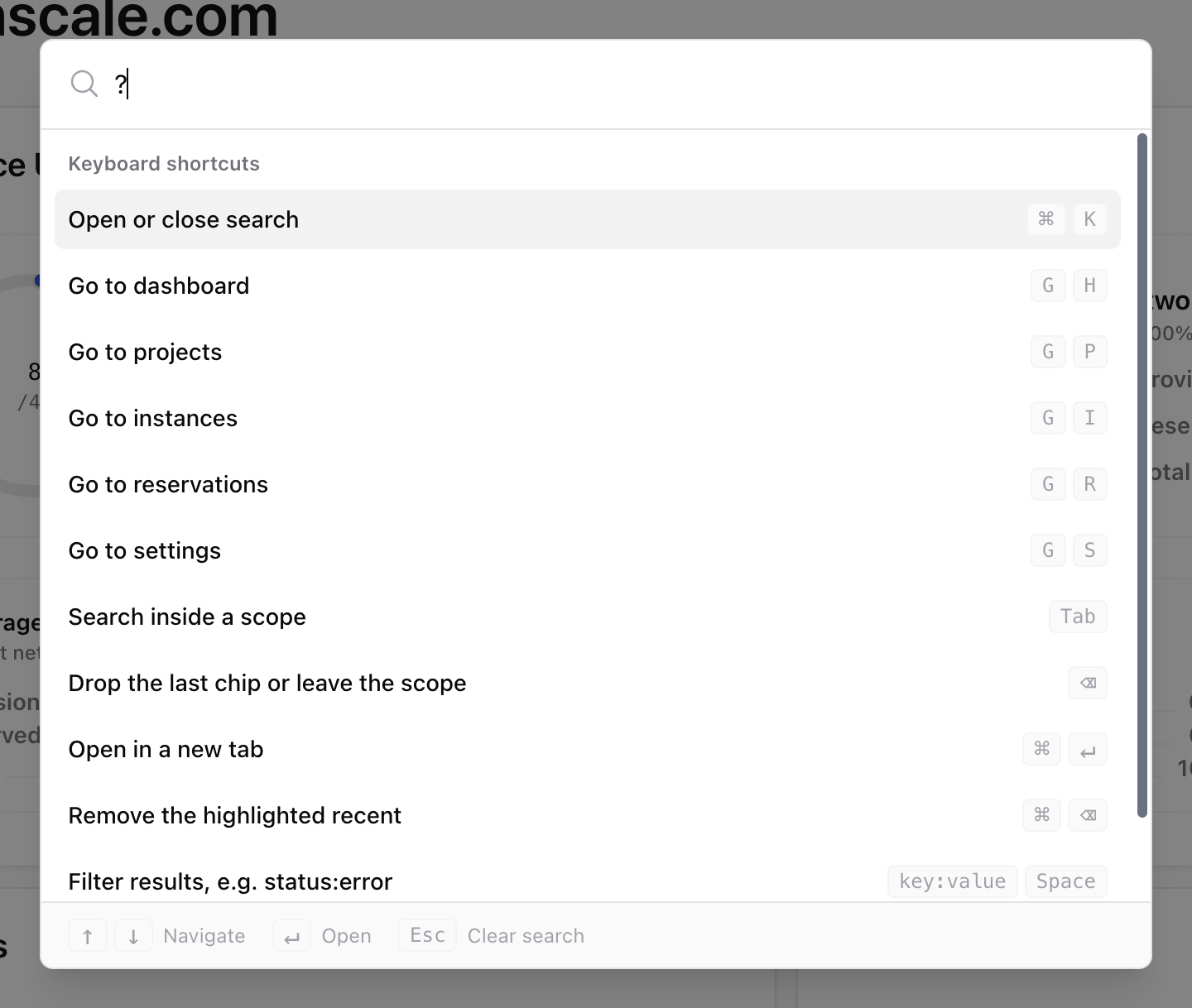
Inside quick search
Go to shortcuts
Anywhere in the console, outside a text field, press G followed by a second key to jump straight to a page. These shortcuts are also shown next to the matching pages in quick search.
Outside a project, G then I and G then K open quick search scoped to instances or Kubernetes clusters so you can pick one. Shortcuts for pages you don’t have access to are not available.