> ## Documentation Index
> Fetch the complete documentation index at: https://docs.nscale.com/llms.txt
> Use this file to discover all available pages before exploring further.
# Auto-recharge
> Auto-recharge tops up your credit balance automatically when it runs low, so your AI services keep running. You set a threshold and a target balance. When your balance reaches the threshold, we charge your default payment card and restore your balance to the target.
## **Setting up auto-recharge**
Auto-recharge requires a default payment card on your account. See [Credit](/docs/manage/credit) for how to add and manage cards.
To turn on auto-recharge:
* Navigate to **Usage & Billing** section and click the **Credit** tab.
* On the **Auto-recharge** card, click **Set up auto-recharge**.
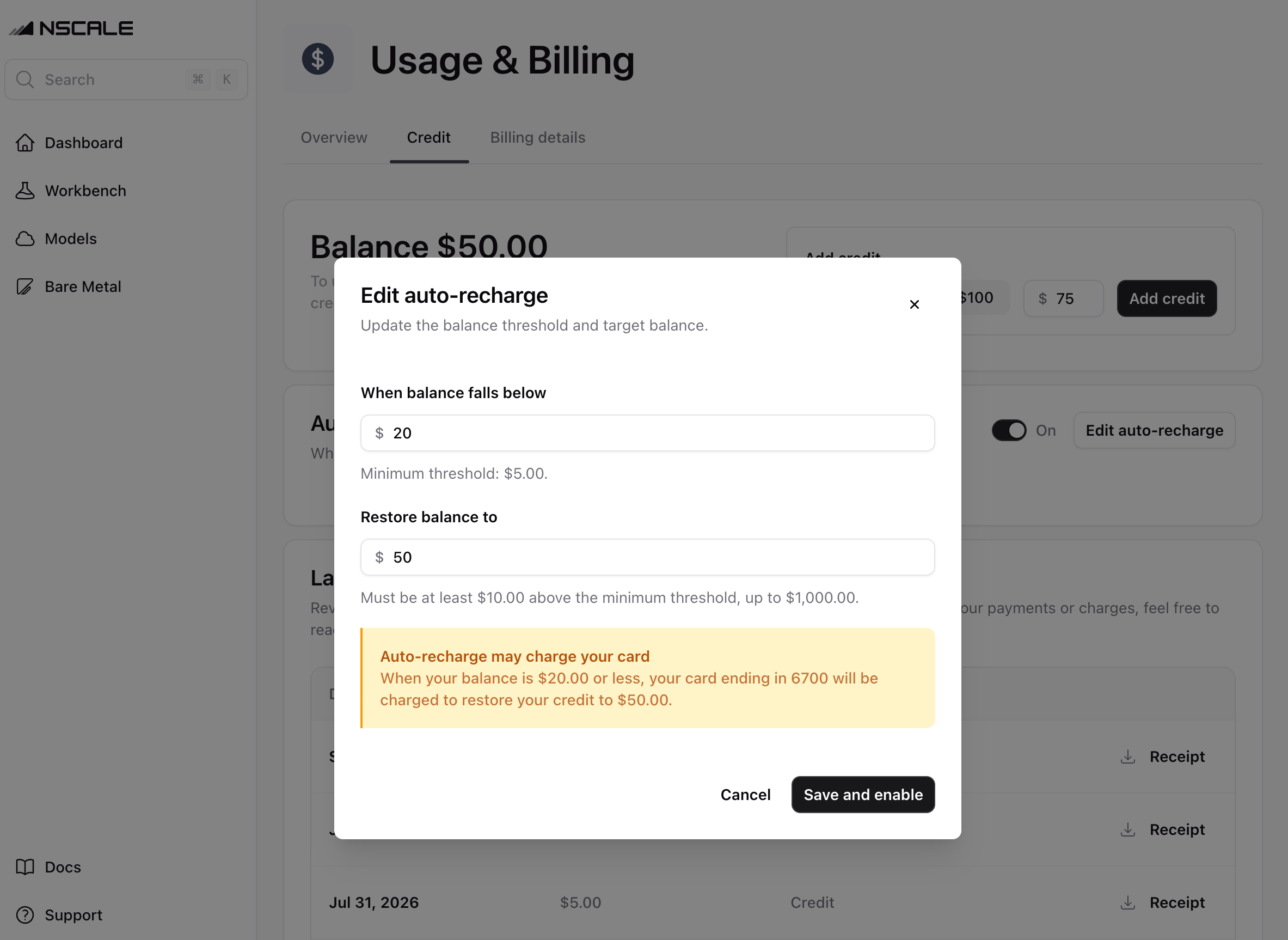
* Set **When balance falls below**: the balance that triggers a recharge.
* Set **Restore balance to**: the balance each recharge restores you to.
* Review your settings and click **Save and enable**.
 **Amount limits**:
The minimum threshold is \$5. The target balance must be at least \$10 above your threshold, up to a maximum of \$1,000.
## **How recharges work**
When your credit balance reaches your threshold, we charge your default payment card the difference between your current balance and your target balance. If your threshold is \$20, your target is \$50 and your balance falls to \$18, your card is charged \$32.
Enabling auto-recharge, or editing its amounts, can charge your card immediately if your balance is already below the threshold. The console shows this warning before you confirm.
For every recharge:
* Your balance is restored to the target within a few seconds of payment.
* You receive an invoice from Stripe and a confirmation email from Nscale. The recharge also appears in your in-app notifications.
While auto-recharge is turned on, low balance warning emails are not sent. Auto-recharge is handling your balance, so you are only contacted about recharge outcomes.
## **If a payment fails**
If a recharge payment is declined, auto-recharge is turned off automatically and no credit is added. You receive an email and an in-app notification, and the **Auto-recharge** card shows the failure with the reason from your card provider.
To resume:
* Check your card in the **Billing Details** tab, and update it if needed.
* Return to the **Auto-recharge** card and turn auto-recharge back on. Your threshold and target balance are kept, and a recharge is attempted right away if your balance is below your threshold.
Low balance warning emails resume while auto-recharge is off, so your account is never without a safety net.
## **Editing and turning off**
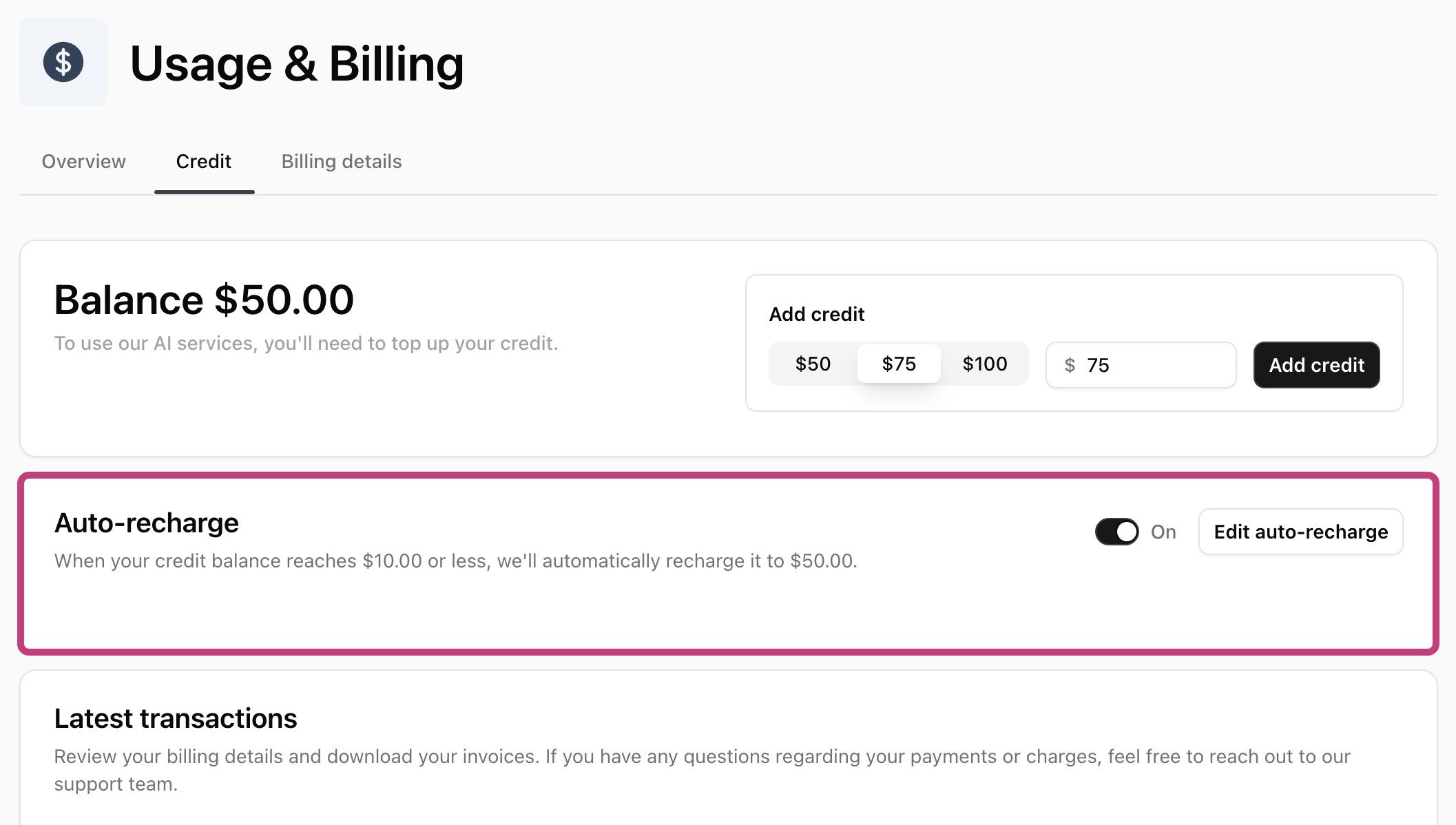
* To change your amounts, click **Edit auto-recharge** on the **Auto-recharge** card.
* To turn auto-recharge off, use the toggle on the card. Your settings are remembered and apply again when you turn it back on.
**Amount limits**:
The minimum threshold is \$5. The target balance must be at least \$10 above your threshold, up to a maximum of \$1,000.
## **How recharges work**
When your credit balance reaches your threshold, we charge your default payment card the difference between your current balance and your target balance. If your threshold is \$20, your target is \$50 and your balance falls to \$18, your card is charged \$32.
Enabling auto-recharge, or editing its amounts, can charge your card immediately if your balance is already below the threshold. The console shows this warning before you confirm.
For every recharge:
* Your balance is restored to the target within a few seconds of payment.
* You receive an invoice from Stripe and a confirmation email from Nscale. The recharge also appears in your in-app notifications.
While auto-recharge is turned on, low balance warning emails are not sent. Auto-recharge is handling your balance, so you are only contacted about recharge outcomes.
## **If a payment fails**
If a recharge payment is declined, auto-recharge is turned off automatically and no credit is added. You receive an email and an in-app notification, and the **Auto-recharge** card shows the failure with the reason from your card provider.
To resume:
* Check your card in the **Billing Details** tab, and update it if needed.
* Return to the **Auto-recharge** card and turn auto-recharge back on. Your threshold and target balance are kept, and a recharge is attempted right away if your balance is below your threshold.
Low balance warning emails resume while auto-recharge is off, so your account is never without a safety net.
## **Editing and turning off**
* To change your amounts, click **Edit auto-recharge** on the **Auto-recharge** card.
* To turn auto-recharge off, use the toggle on the card. Your settings are remembered and apply again when you turn it back on.
 You can enable or edit auto-recharge up to five times in 24 hours. If you reach the limit, wait and try again later, or contact support.
Need help with billing? Reach out to our support team to get help.
You can enable or edit auto-recharge up to five times in 24 hours. If you reach the limit, wait and try again later, or contact support.
Need help with billing? Reach out to our support team to get help.