

Reservations work for GB300 NVL72 and B200. Reserved capacity is not available through the standard instance creation flow. To run on it, you reserve capacity first, then create a placement inside the reservation.
Summary
This page walks you through working with reservations in the Nscale Console, the capacity model for bare-metal GPU regions. You’ll learn how reservations are structured, how to reserve contiguous capacity, how to read a reservation’s capacity, and how to delete one. Use this guide if you:- Need guaranteed, exclusive GPU capacity for a project rather than best-effort placement
- Are preparing to run tightly coupled training or large-scale inference on reserved GPU capacity
- Want a repeatable, UI-driven process for reserving and managing bare-metal GPU capacity
How reservations fit together
Reservations sit at the top of a four-level hierarchy. Each level builds on the one above it:
A single reservation can host multiple placements, for example a production training cluster and a smaller development cluster on the same reserved capacity. The total number of servers across all placements can never exceed the reservation’s capacity.
Capacity is shown in the console. Each reservation unit reports its per-unit totals (hosts, GPUs, CPUs, and memory) in the creation wizard and via the reservation-units API. Per-unit totals vary by flavour.
Availability
Reservations are the capacity model for bare-metal GPU regions, currently GB300 NVL72 and B200. Capacity is contracted and region-specific, so a reservation can only be created in a region that has enough contiguous capacity to satisfy the full request.Key properties
Reservations behave differently from on-demand instances. Three properties matter most:- Exclusive. Reserved capacity belongs to your project alone for the life of the reservation.
- Contiguous and atomic. A reservation is all-or-nothing. Either the exact contiguous capacity is delivered, or the request fails cleanly—fragmented capacity is never silently combined.
- Fixed size. A reservation can’t be grown after creation. You can add or remove placements, release unused units through the API, or delete the reservation entirely.
Naming rules: Reservation names are 3–50 characters of lowercase letters, digits, and dashes.
Reservation lifecycle
A reservation moves through the following provisioning states:
Actions you can take:
- Create a placement to start launching servers from the reservation
- Delete a reservation to release its capacity (this also deletes every placement in it)
Reserve capacity
Reserving capacity is a three-step wizard. You can’t proceed to the next step until the current one is valid.1
Open the create flow
In the Console, open your project, then go to Compute → Reservations and click Reserve Capacity.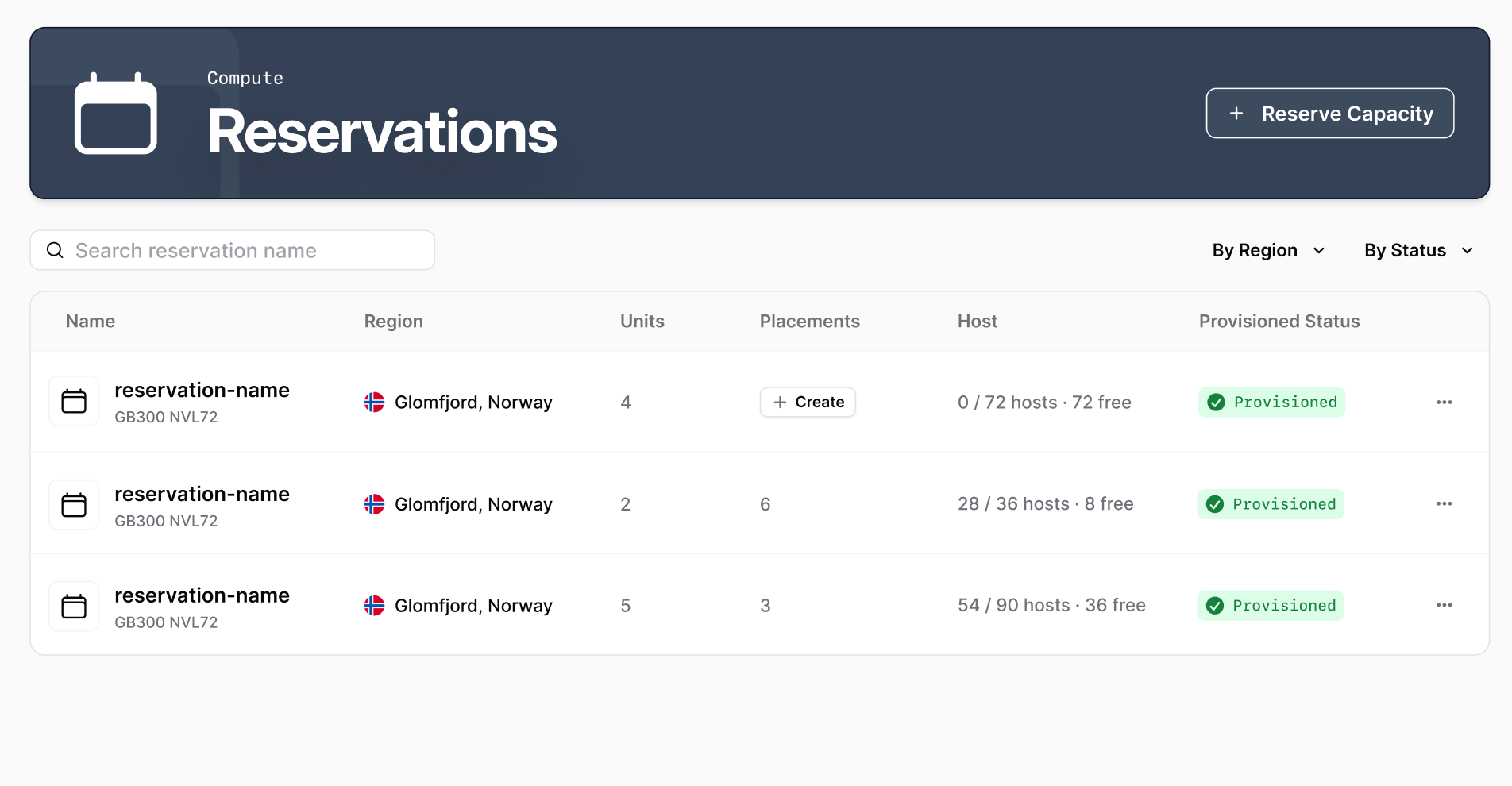
2
Set up your reservation
Give the reservation a name under Reservation Name. Names are 3–50 characters of lowercase letters, digits, and dashes.Click Configuration to continue.
3
Configure your reservation
Choose how much capacity to reserve and where: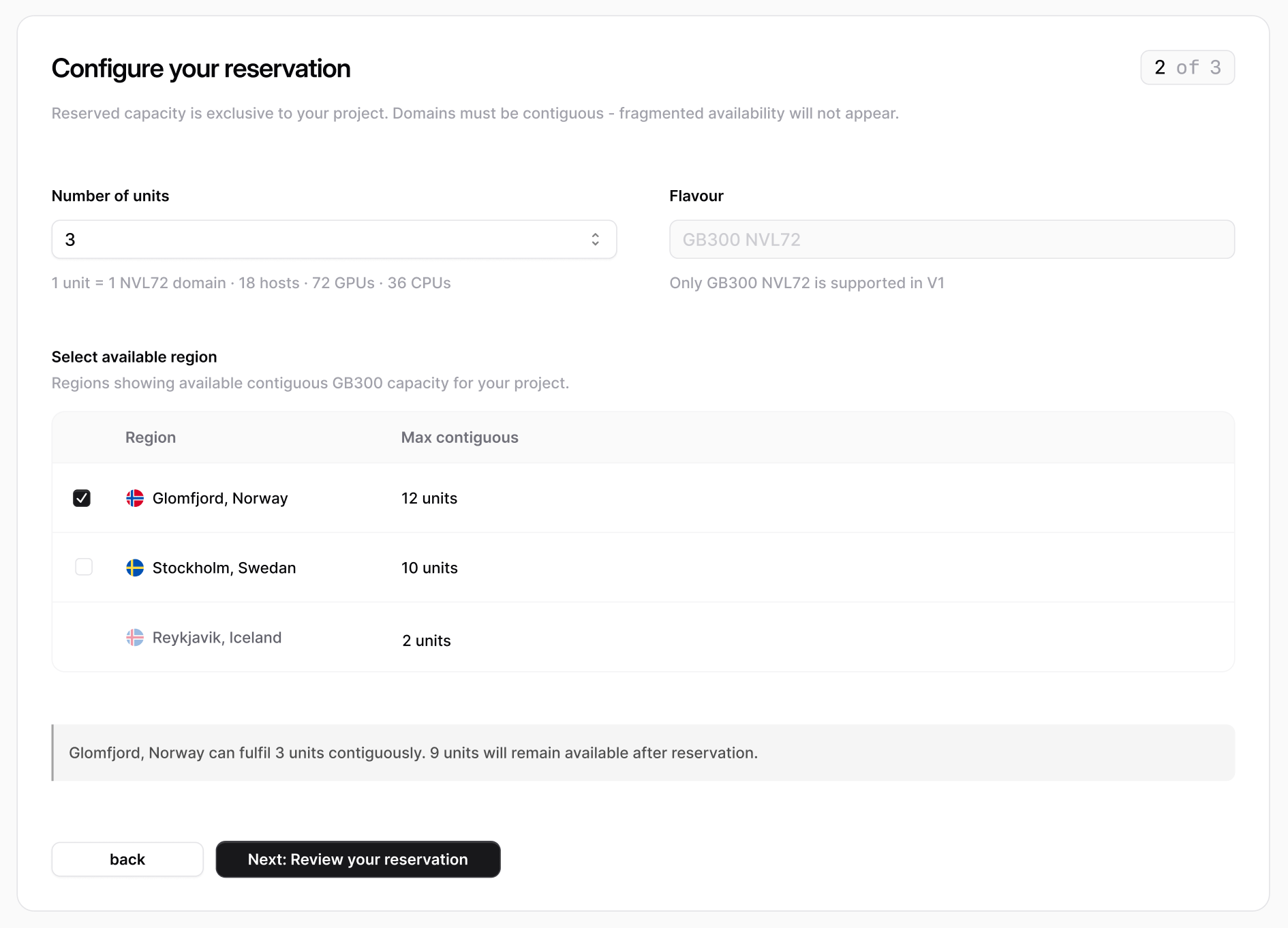
- Flavour selects the reserved capacity type. The per-unit breakdown updates with your choice.
- Number of units sets how many NVLink domains to reserve. The wizard shows the per-unit breakdown (hosts, GPUs, and CPUs) as you adjust the count.
- Select available region lists only the regions with enough contiguous capacity for your request, with the Max contiguous units available in each.
4
Review and reserve
Review the summary: name, unit count, GPU and CPU totals, and region. Reserved capacity is exclusive to your project and can’t be grown after creation.Click Reserve Capacity to submit. The reservation begins provisioning and appears in your reservations list.
View a reservation
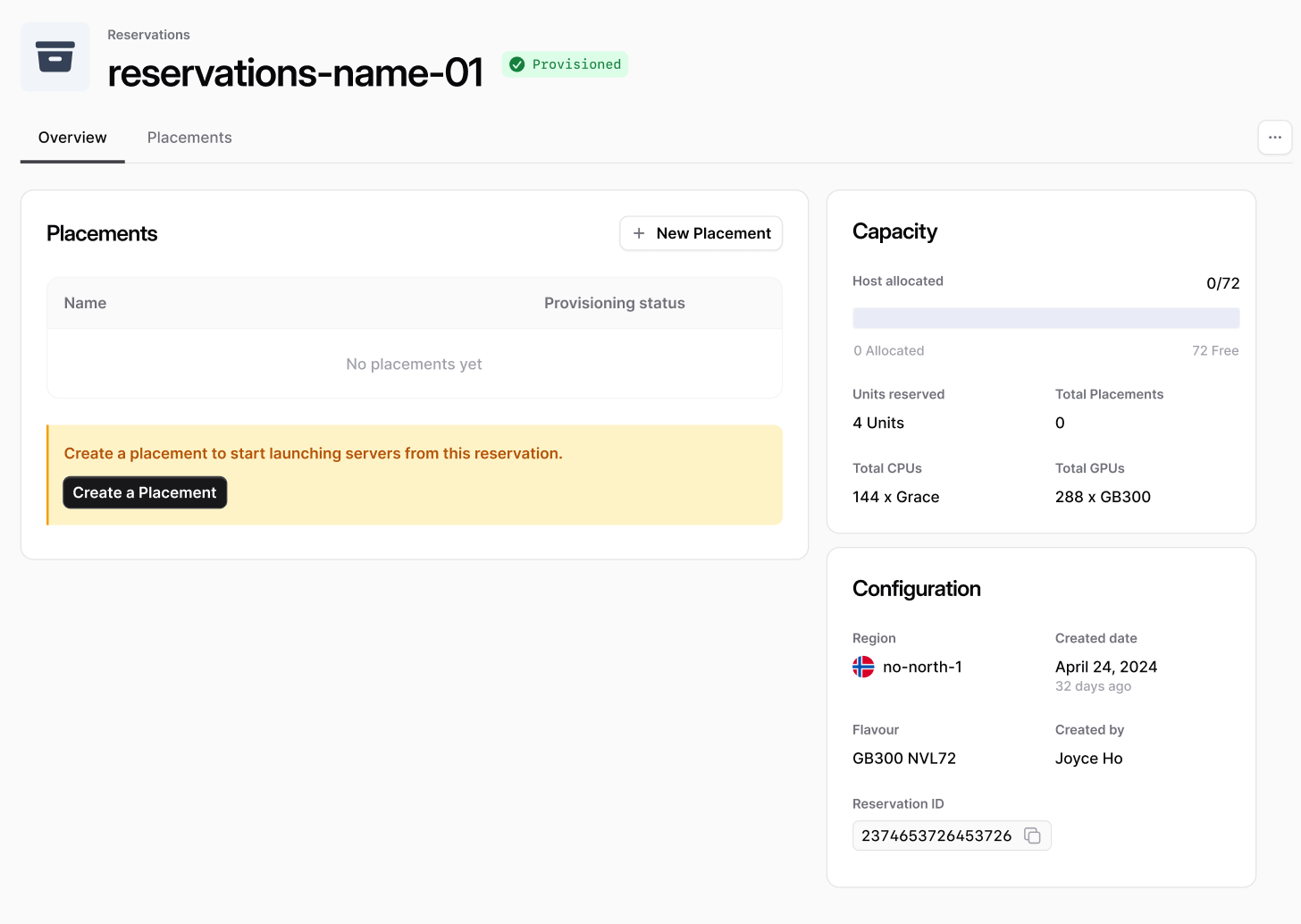
Open a reservation from the list to see its detail view. The Overview tab brings together everything about the reservation:- Placements — the placements running in this reservation, with a shortcut to create a new one.
- Capacity — how many of the reservation’s hosts are allocated to placements versus free, alongside units reserved, total placements, and per-host CPU and GPU counts.
- Configuration — the region, creation date, flavour, who created it, and the reservation ID.
Delete a reservation
Deleting a reservation releases its capacity back to the region so it can be reserved again.1
Open the reservation
Go to the reservation’s detail view and review its placements—deleting the reservation will remove all of them.
2
Delete the reservation
Open the actions menu and choose Delete Reservation, then confirm. The reservation, its placements, and their servers are deleted, and the reserved capacity is released.
Next steps
- Create a placement to launch servers from your reservation.
- Manage reservations from the command line with the CLI.
- Explore the full Reservation API reference.