This page is preserved for reference only. All cluster workflows have been replaced by the instances model.
Introduction
Cluster Service – Introduction
The Cluster Service allows users to provision on-demand compute clusters composed of virtual machines or bare metal nodes. Designed for AI, ML, and general-purpose workloads, it provides a streamlined way to deploy and manage multiple instances through a unified UI and API. Networking, storage, and image management are abstracted and handled by the platform, so users can focus on running workloads without managing infrastructure complexity.Benefits of the Cluster Service
- No networking complexity: Instances are auto-connected within a shared project network.
- Easy provisioning: Minimal configuration via a single pane of glass covering compute, networking, and storage.
- Use only what you need: Fractional flavours reduce cost for inference, testing, and right-sized workloads.
- Run GPU workloads out of the box: Images suitable for GPU workloads are available and ready to use, or you can bring your own image.
- Full control over lifecycle: Start, stop, and delete instances without requiring orchestration tools.
- OS-level access: SSH into cluster nodes to configure and operate the system directly, using the credentials provided when the cluster is created.
Architecture
This diagram illustrates two high-level deployment models for compute infrastructure: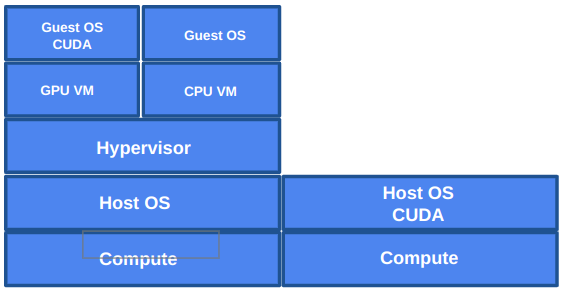
- Left Side: Virtualised Architecture Compute resources are virtualised using a hypervisor running on top of a host OS. Virtual machines (VMs) are provisioned for CPU or GPU workloads. GPU VMs include a guest OS with CUDA support to enable accelerated computing.
- Right Side: Bare-Metal Architecture Applications run directly on the host OS without a virtualisation layer. CUDA is installed at the host level, providing direct access to GPU resources for maximum performance.
Cluster Provisioning
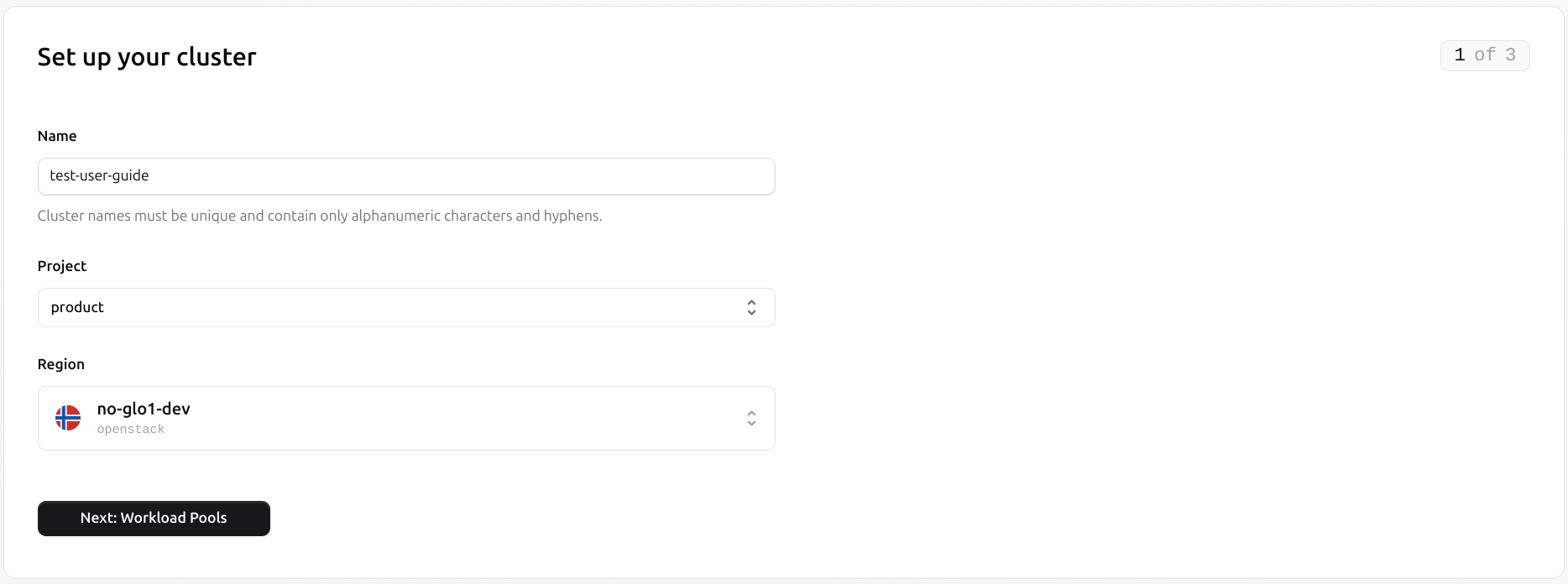
To create a new cluster, navigate to the Clusters section under Compute on the left menu.
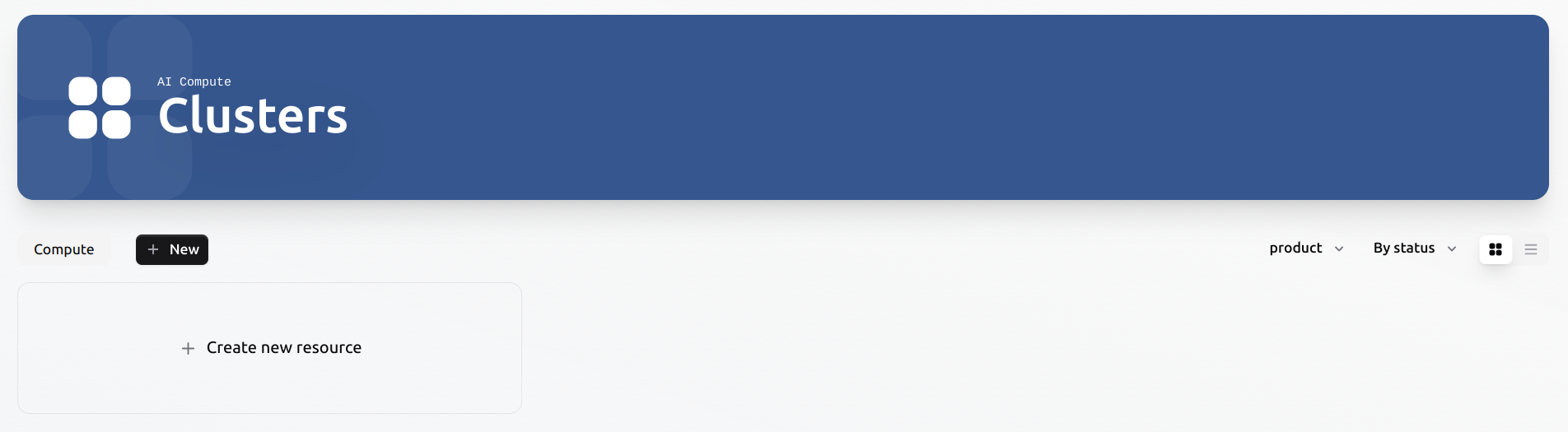
-
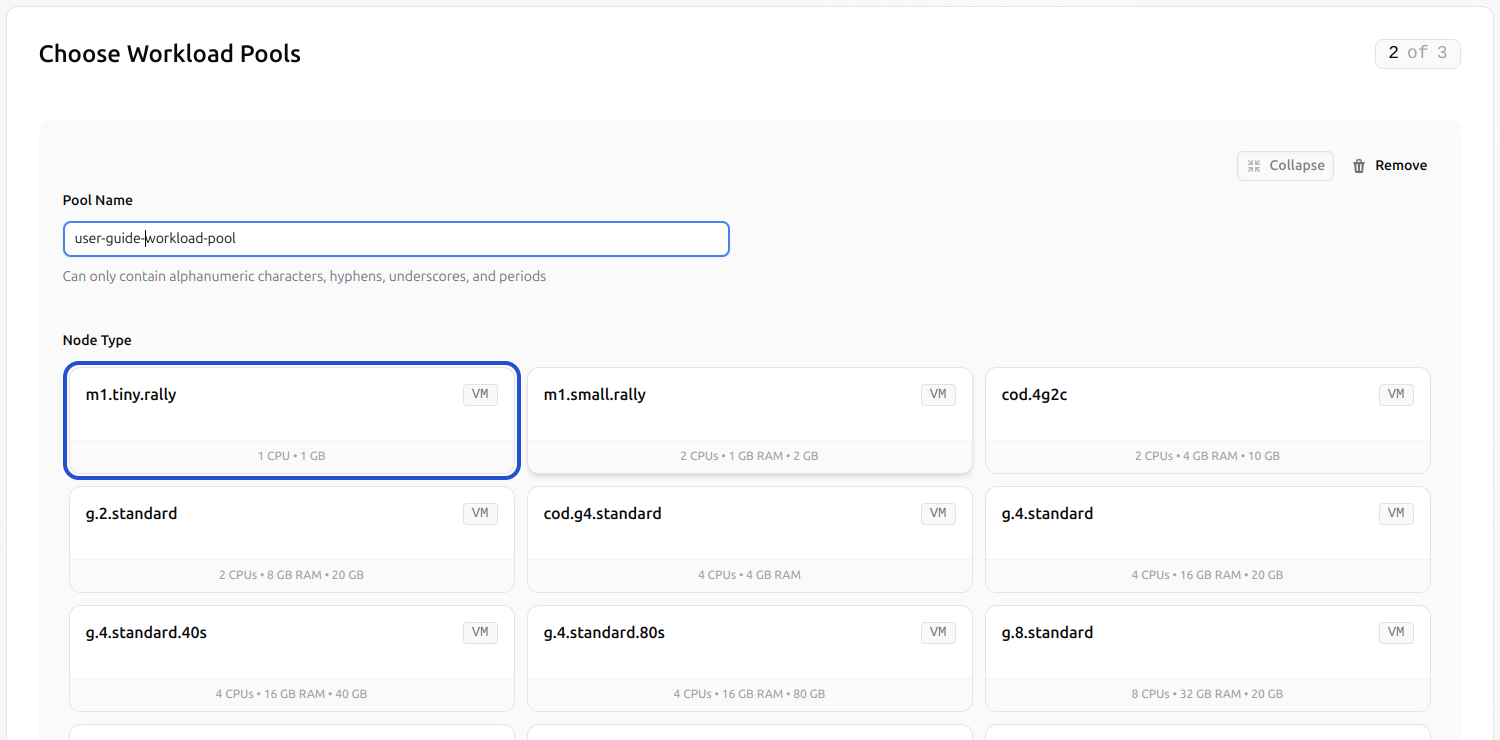
Set the pool name using alphanumeric characters and hyphens.
-
Select the desired node type.
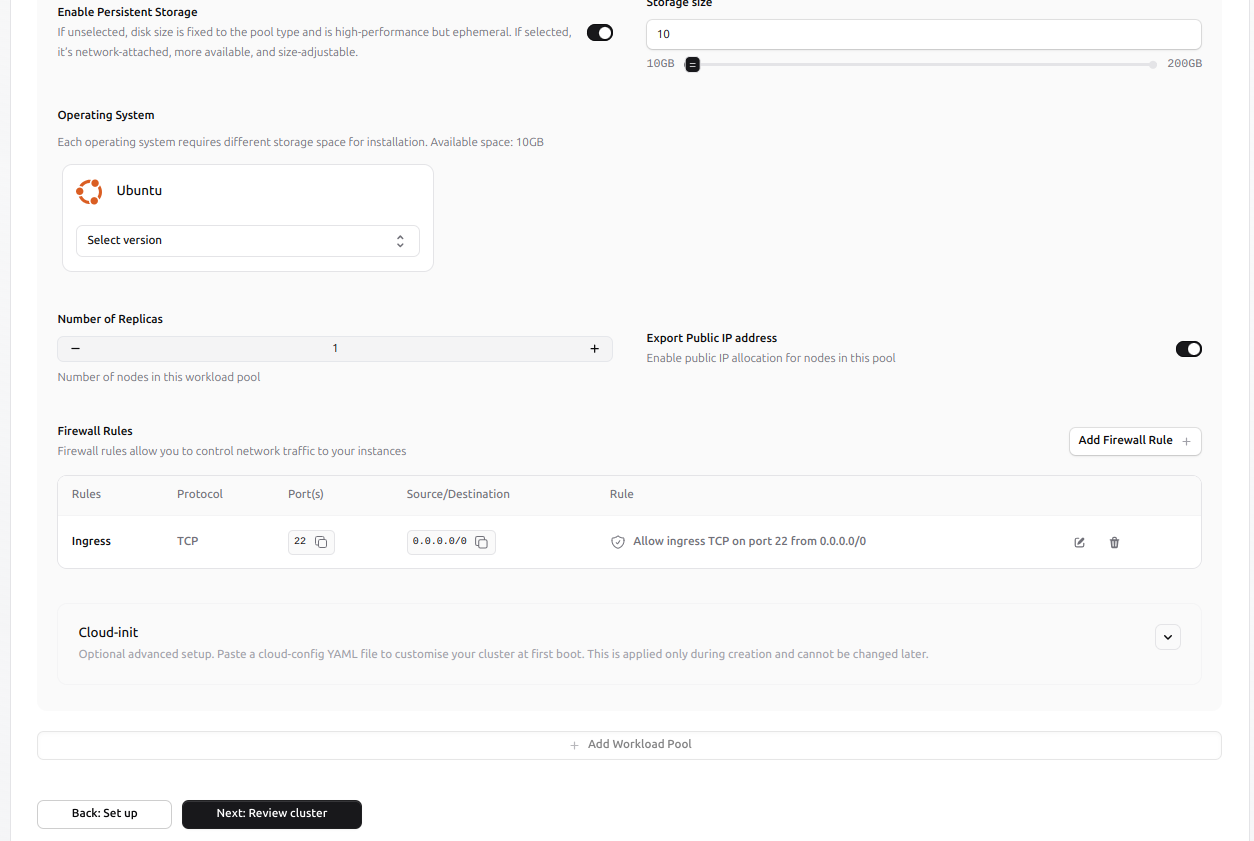
- Enable persistent storage and specify the desired volume size.
- Choose the operating system version and define the number of replicas.
- Enable or disable public IP exposure as needed.
-
Configure firewall rules to control inbound access (e.g., allow SSH on port 22).
-
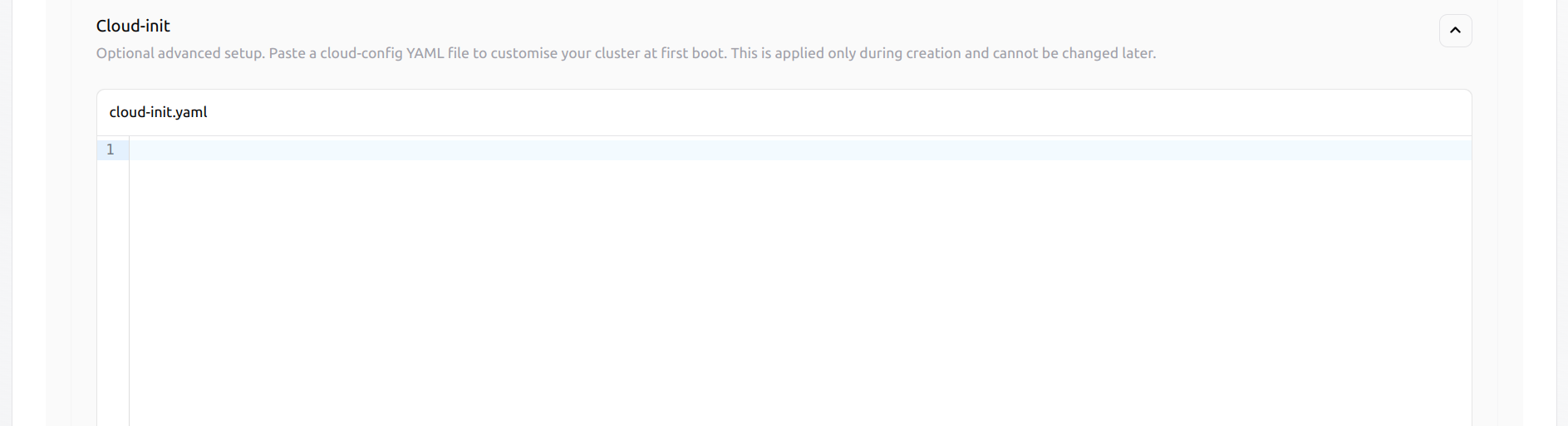
Optionally, you can provide a cloud-init configuration to run custom setup scripts during the first boot of each node.
-
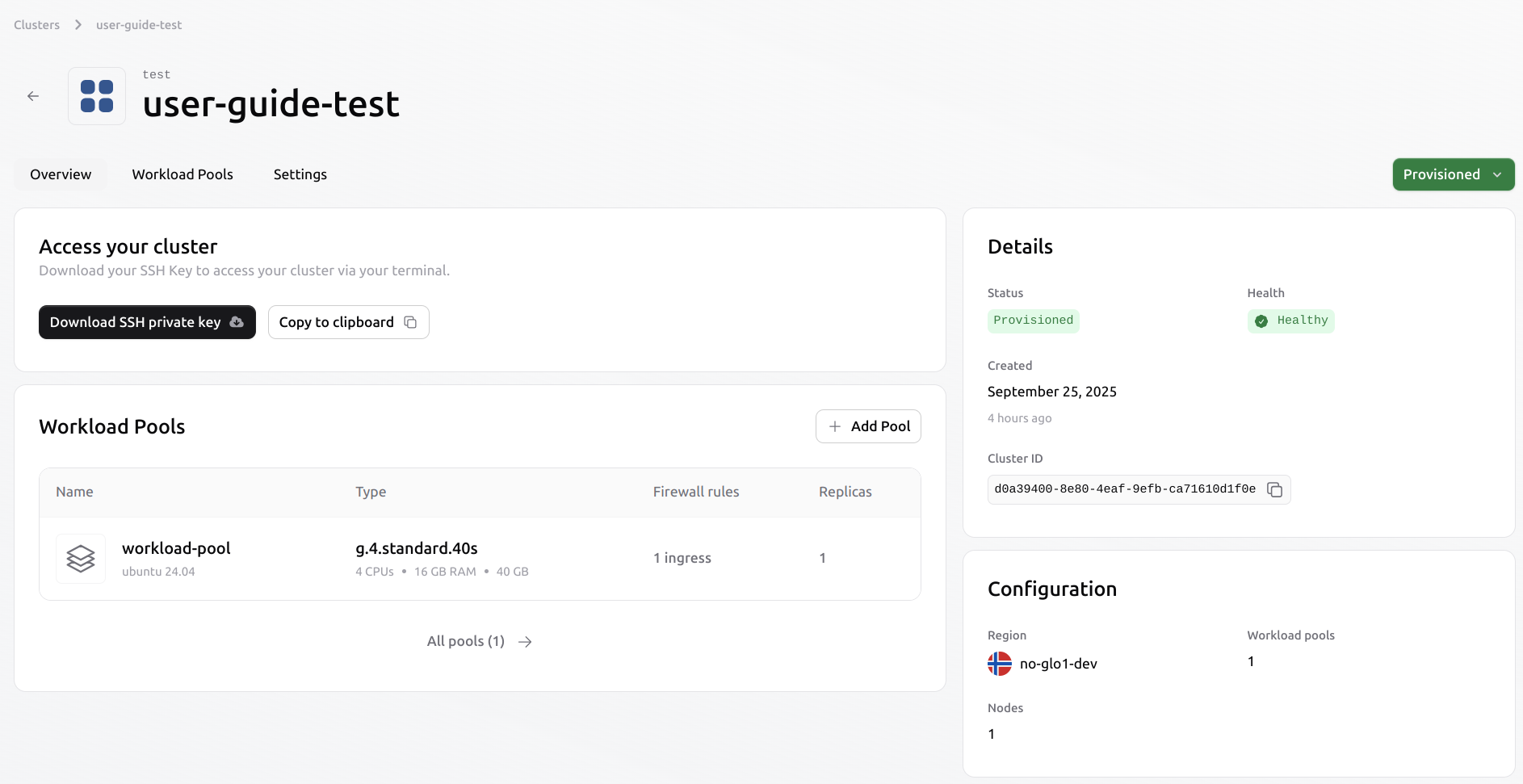
Once the configuration is completed, review the cluster and provision it. When provisioning is complete, the cluster status will be set to ‘Provisioned’, and connection details, including the SSH private key and workload pool IP addresses, will be available in the cluster overview.
Monitoring and observability
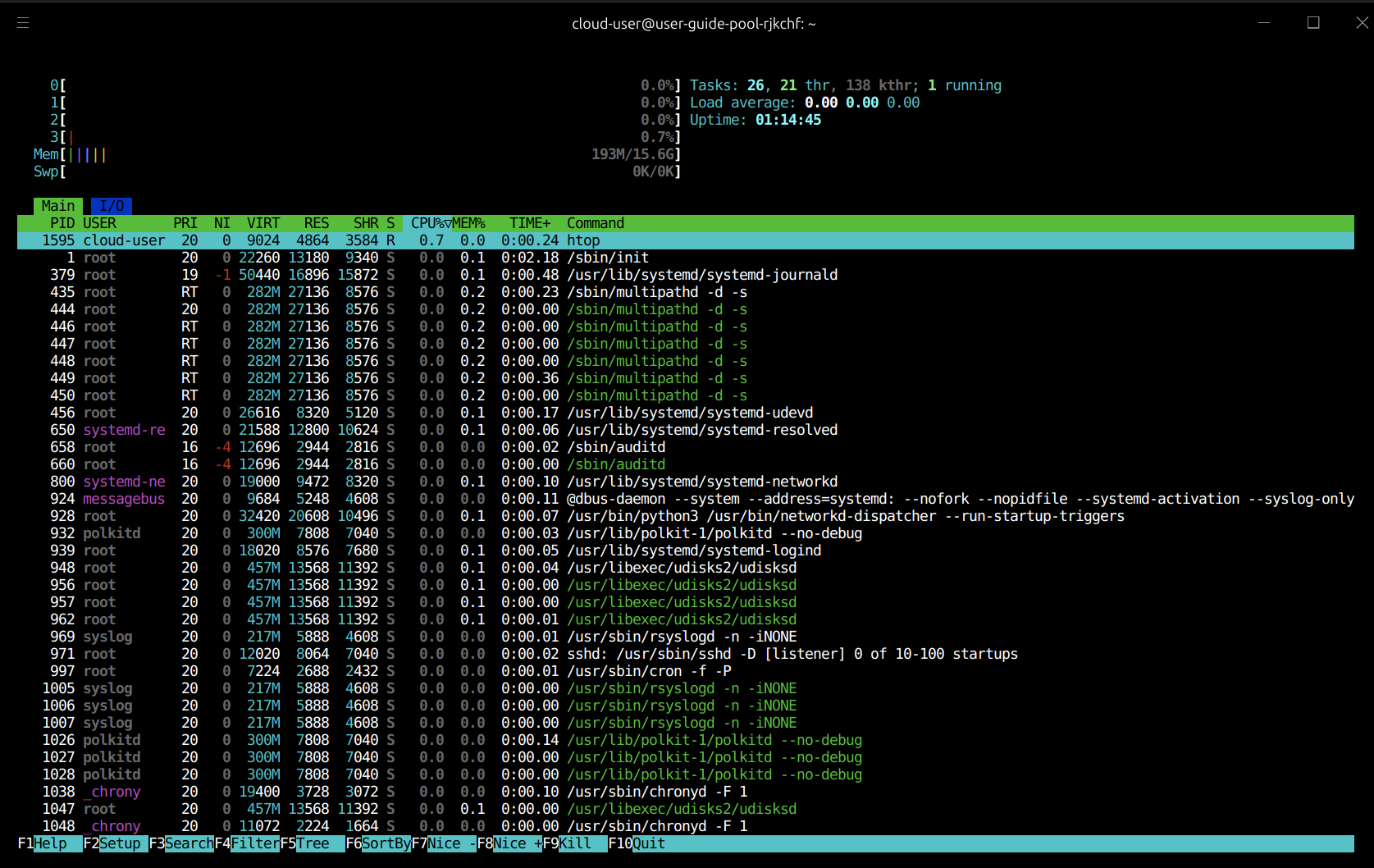
Users can monitor resource utilisation directly from the operating system using the Interactive Process Viewerhtop.
Create a new pool on the existing cluster
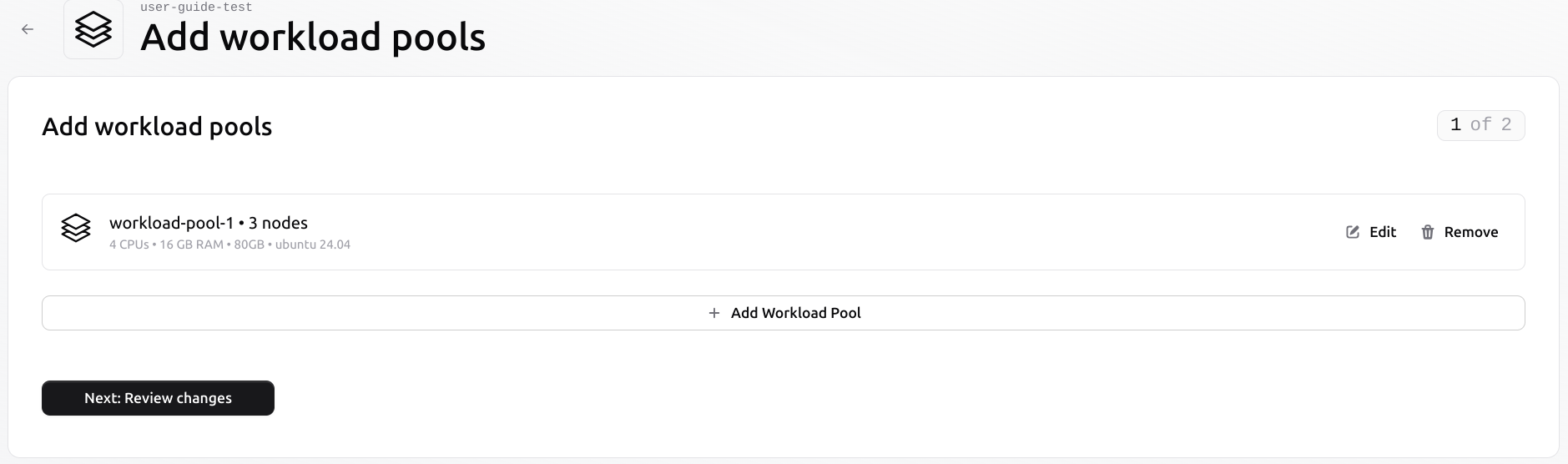
Once inside the cluster, open the Workload Pools tab. Use the “+ Add Pool” button to start a new pool configuration.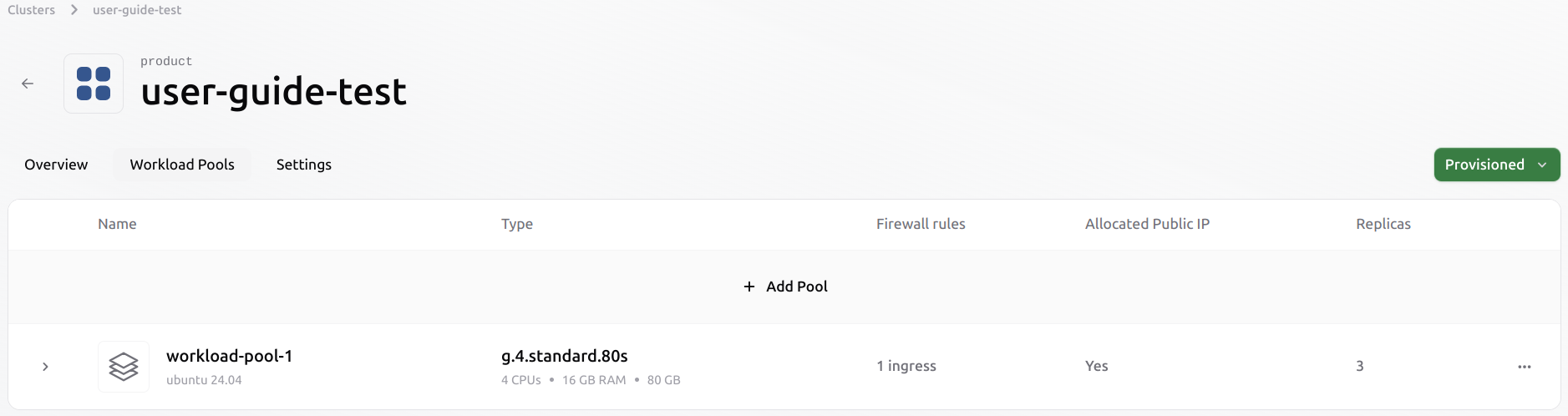
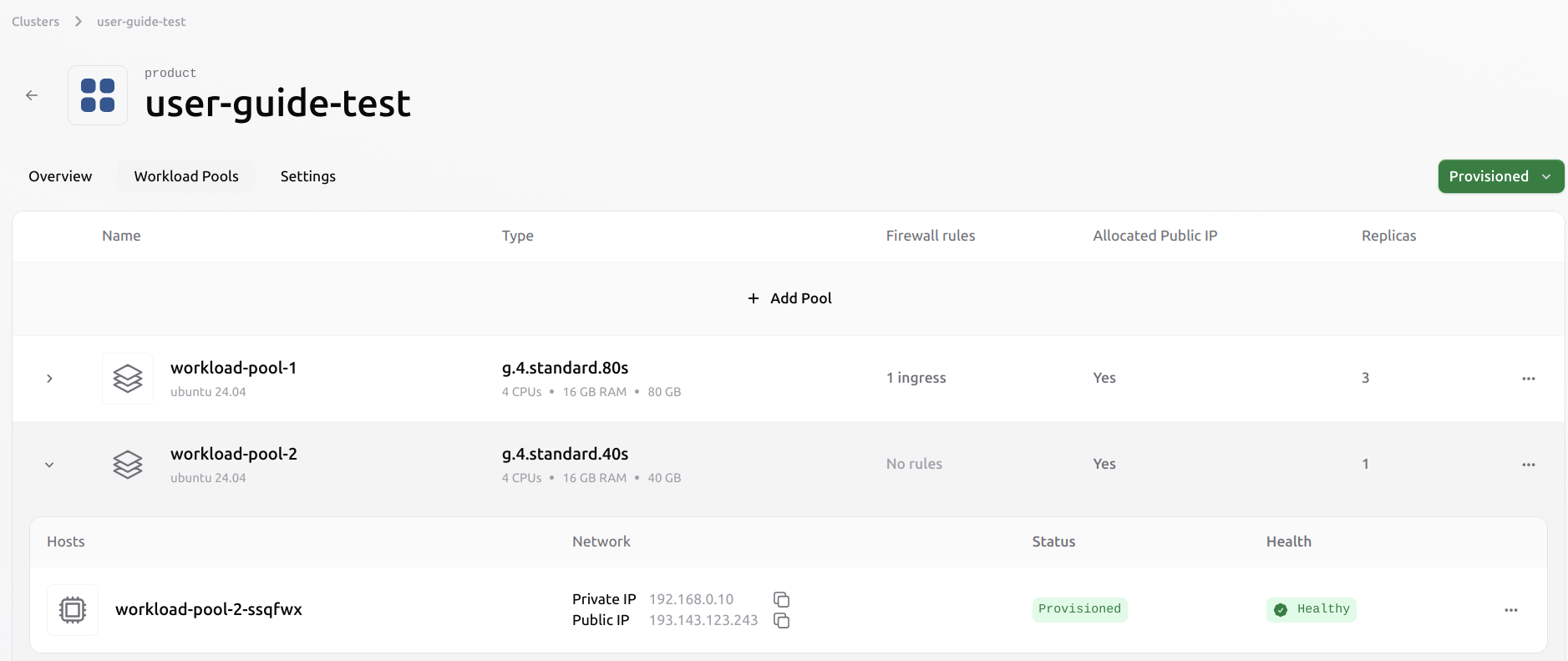
Evicting a VM from an existing pool
It is possible to evict a Virtual Machine from an existing pool. This process does not automatically migrate any existing workloads from the evicted VM to other Virtual Machines in the pool. The user has to manage the workload before eviction manually. Select the VM to evict from the pool by clicking the three dots on the right.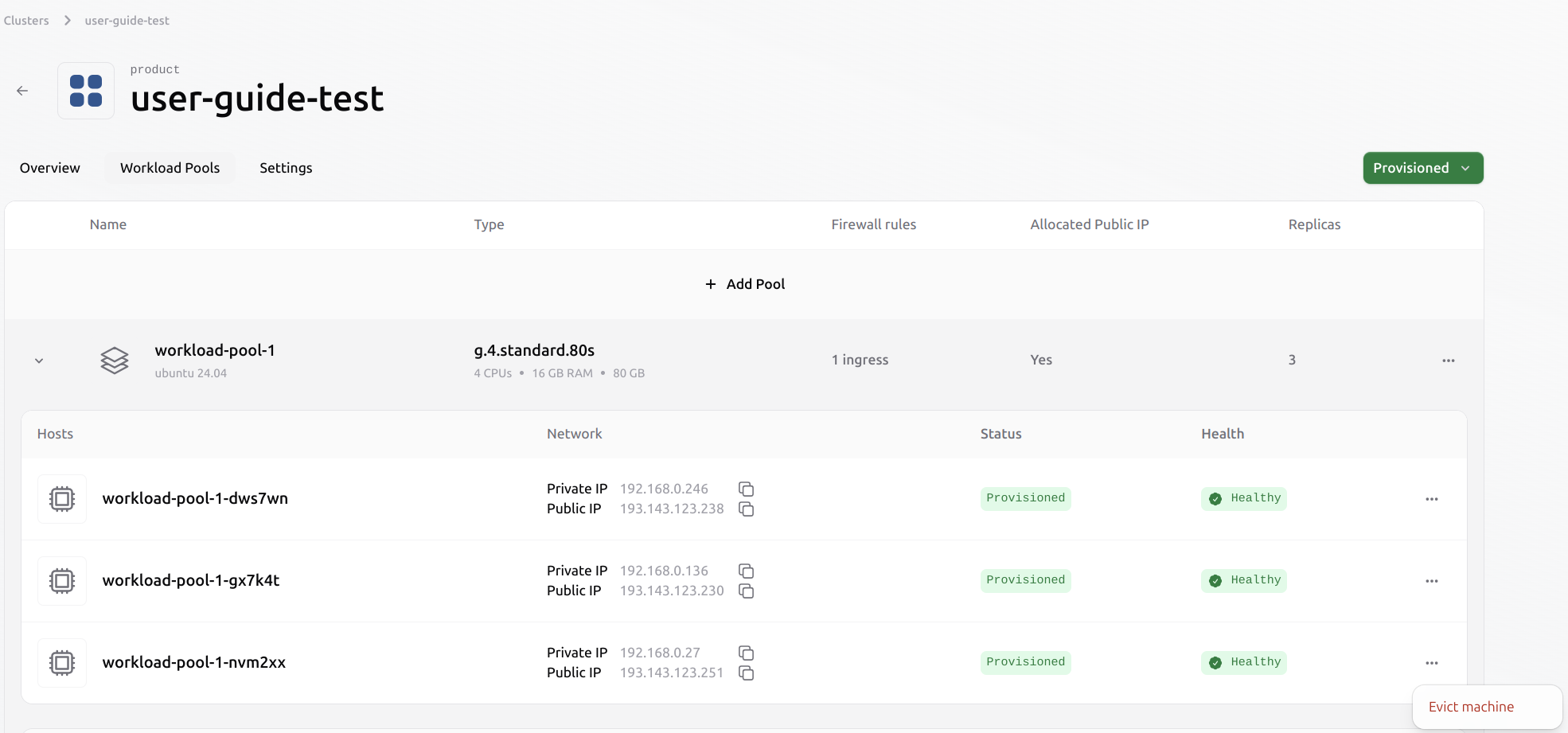
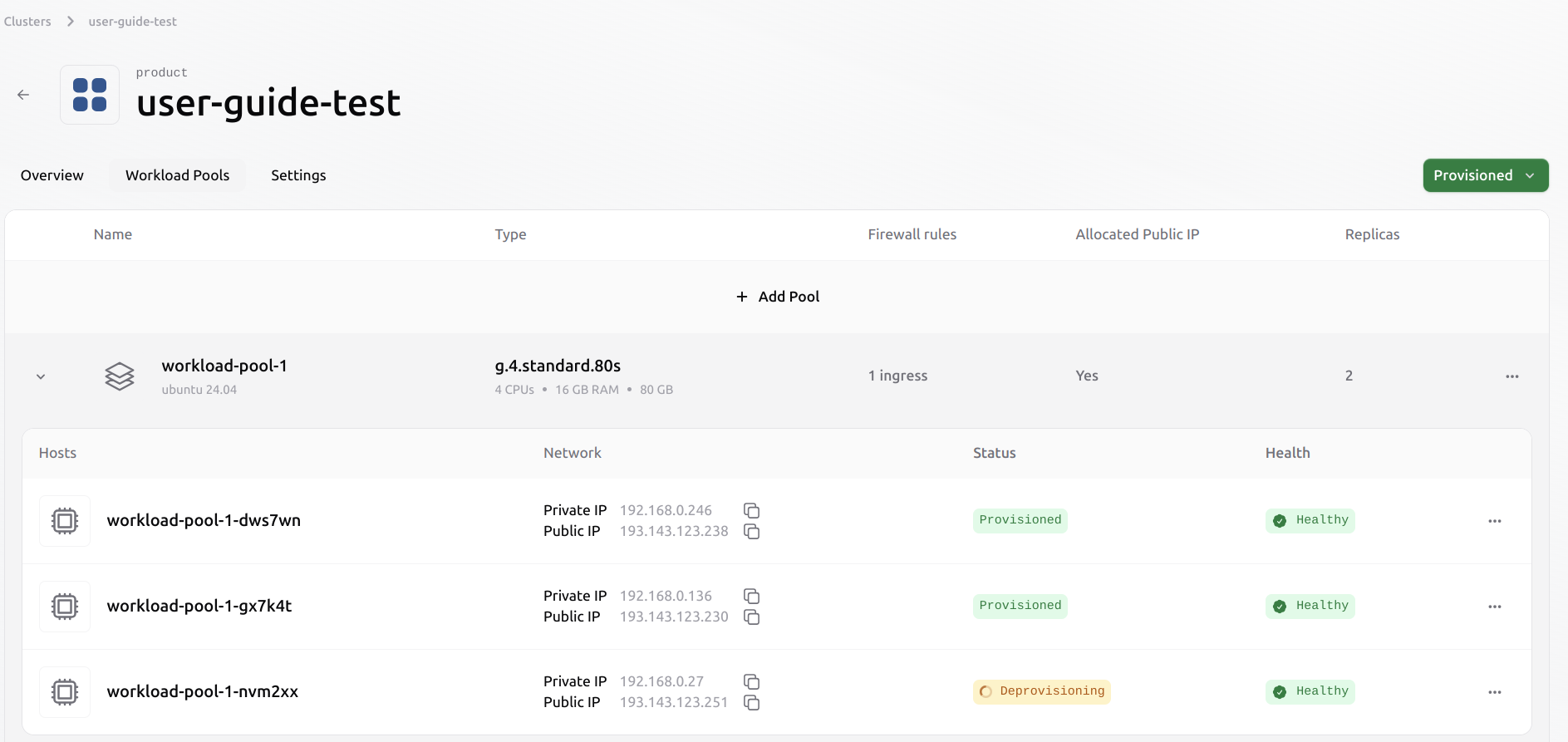
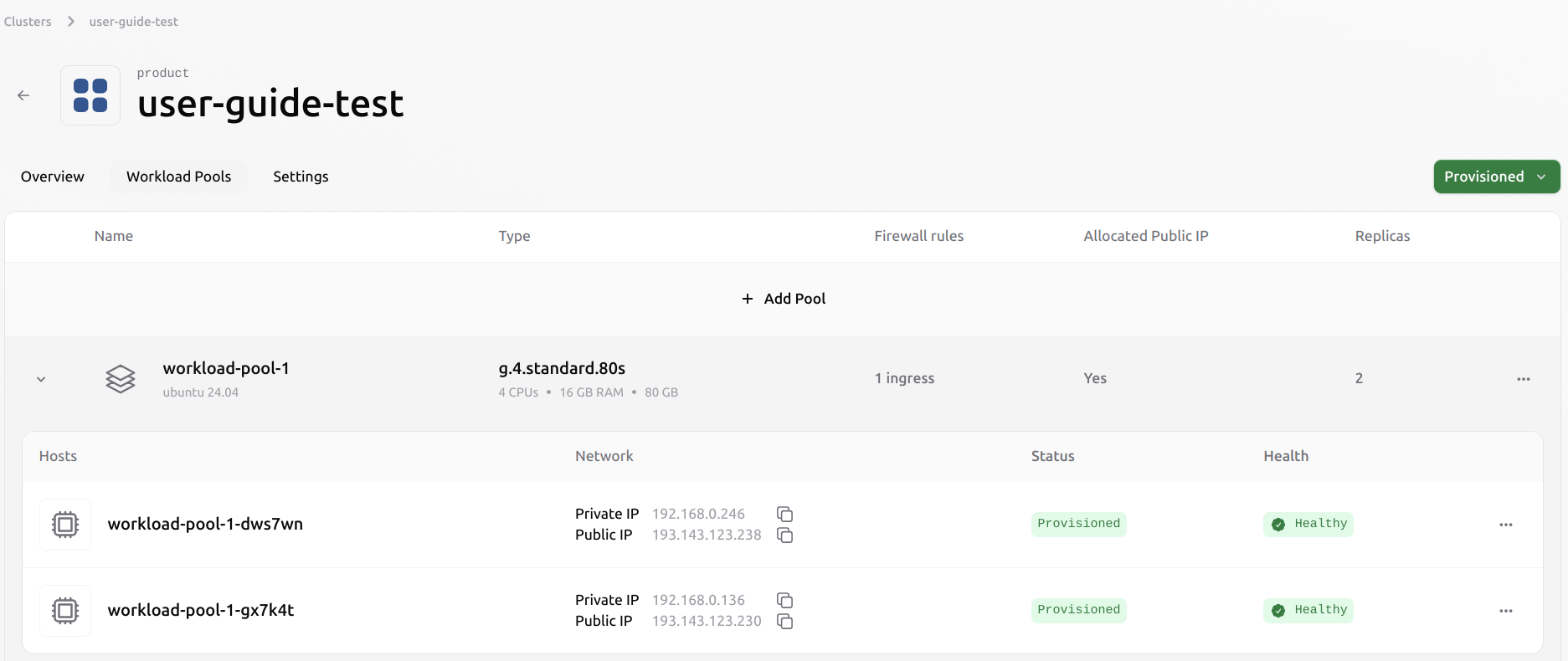
Deleting a pool from an existing cluster
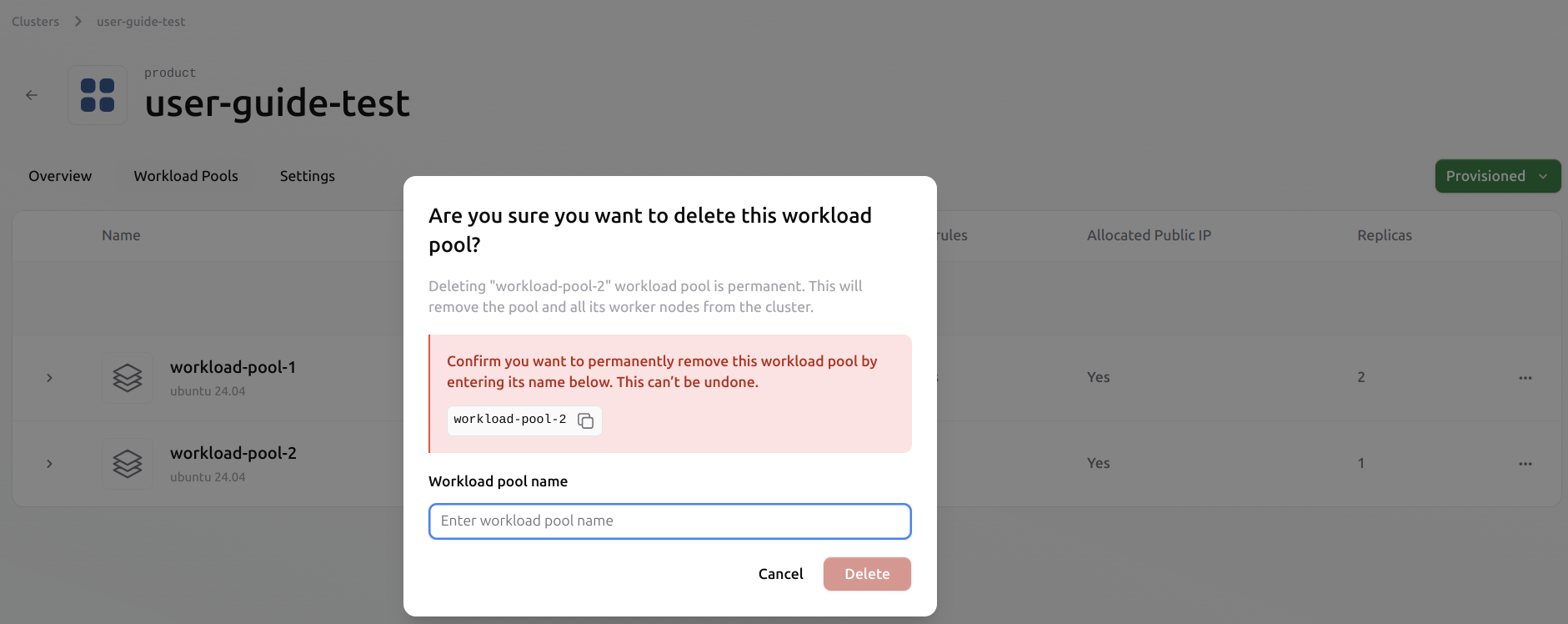
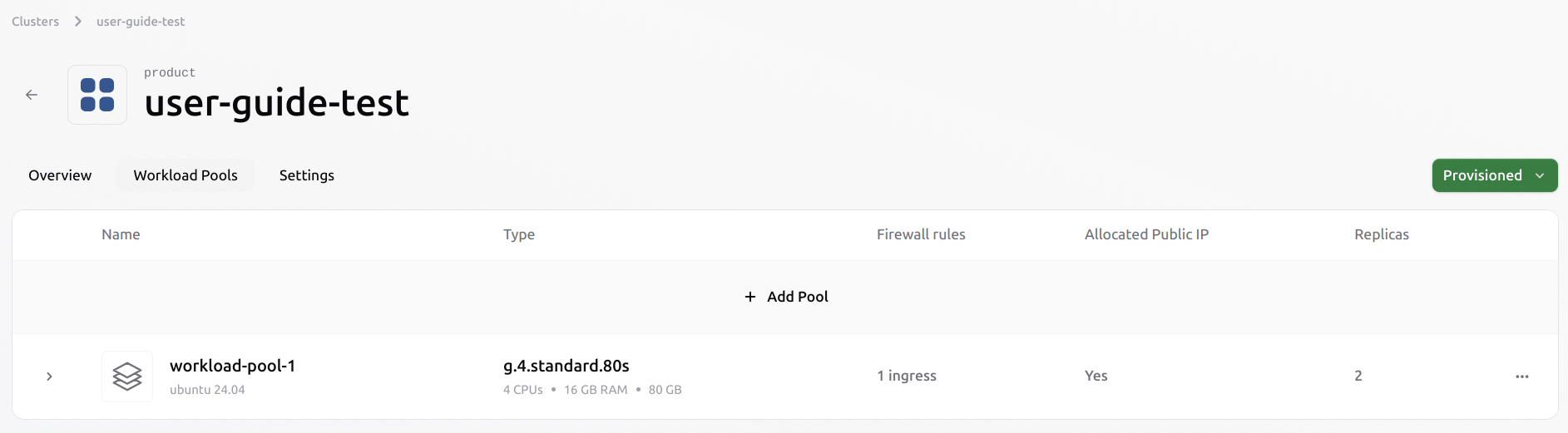
This process operates at a higher level than deleting a single VM. The user does not need to evict the VMs individually. Once the pool is deleted, all VMs within it will also be evicted automatically. All associated resources, including ephemeral data and public IPs, will be released from the cluster. Users must ensure that any data they wish to retain is saved to persistent volumes beforehand. Select the pool you want to delete. Click the three-dot menu on the right and choose Delete Pool.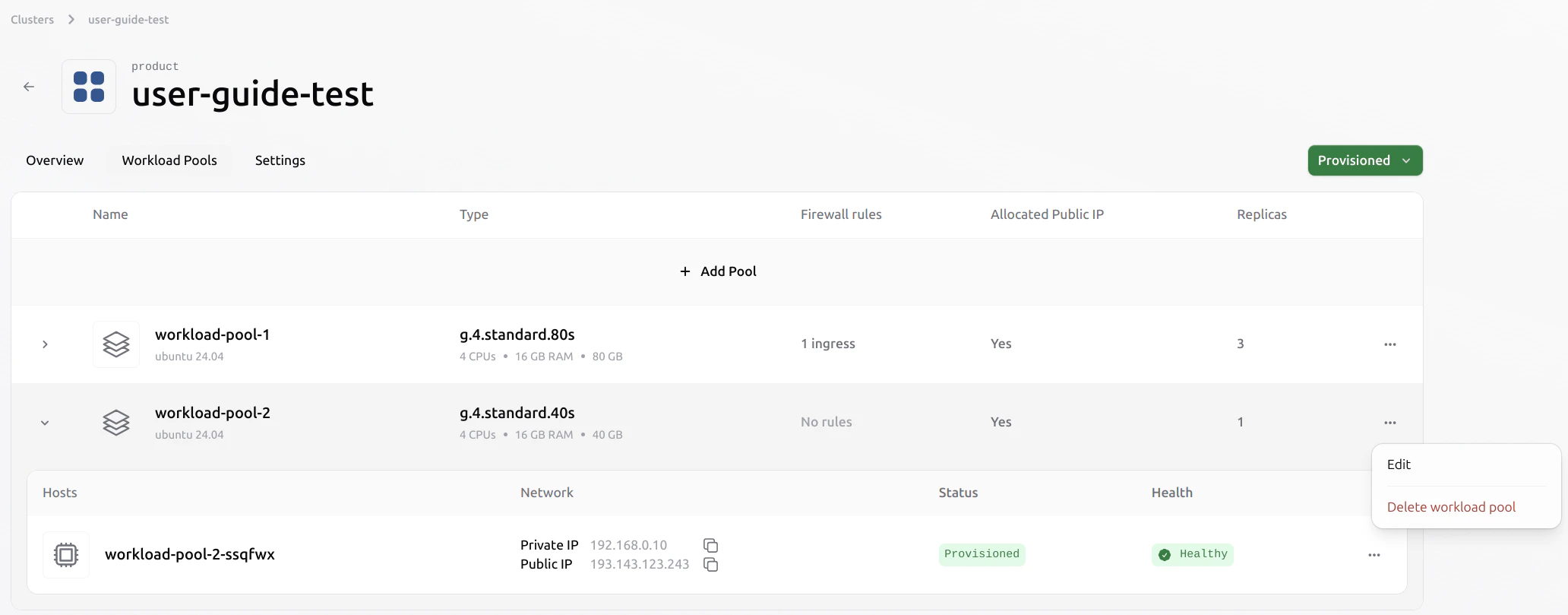
Delete a cluster
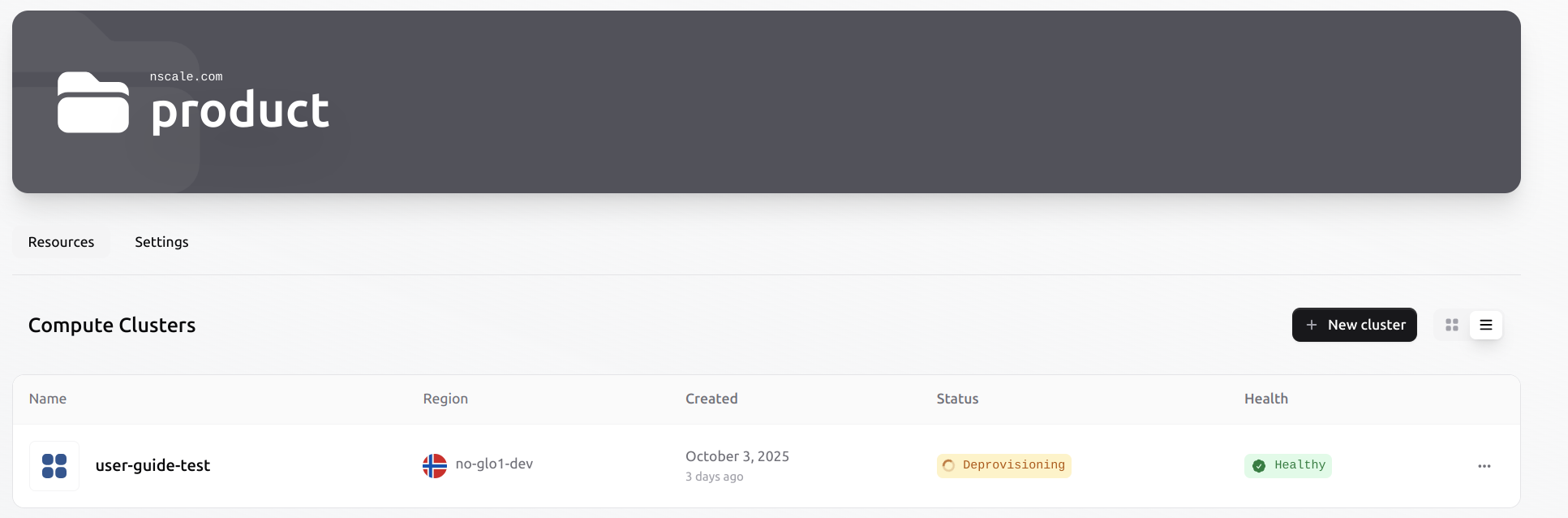
The clusteruser-guide-test contains one or more workload pools with running Virtual Machines. Before initiating the deletion process, ensure that any data that needs to persist is stored in a persistent volume. Ephemeral data will be permanently deleted.
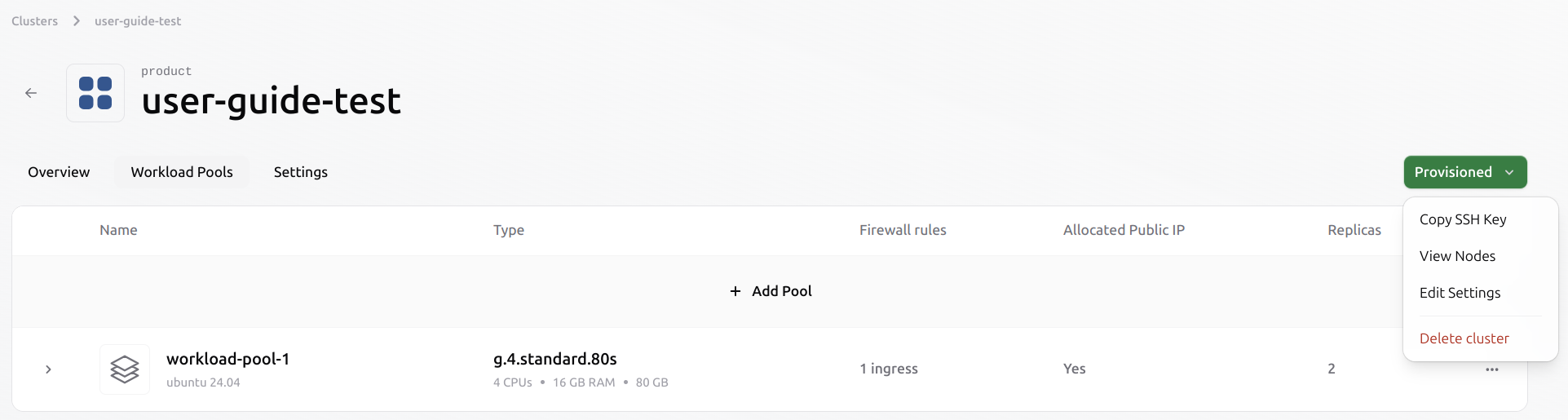
In the Workload Pools tab, click the green Provisioned button in the top-right corner of the cluster view.Select Delete cluster from the dropdown menu to begin the deletion process.
- All workload pools
- All Virtual Machines
- Any ephemeral storage
- Any assigned public IPs
All resources will be evicted and released back to the shared resource pool.
When the process completes, the cluster is removed from the Compute Clusters list and all associated resources are fully deallocated.