

Beta: Deploying models into Environments is in beta for private cloud organizations. To join the waitlist, contact support.
- The model, which serves an endpoint: a URL you send requests to. It works with the OpenAI API format.
- A secret, which stores the access key that lets you call the endpoint.
What it does
- Dedicated hardware. The model runs on your environment cluster. No other customer shares it.
- OpenAI-compatible endpoint. OpenAI SDKs and tools work with it.
- Multiple deployments. You can deploy the same model to several environments, for example
devandprod.
Key words
Profile types:
- Balanced: a good mix of speed and cost
- Latency-optimized: faster replies for each request
- Throughput-optimized: handles more requests at once
- Custom: a special setup made for a specific need
Before you start
You need an environment with the status Ready.Deploy a model
1
Start a deployment
Go to AI Services → Models. Click + Deploy Model.You can also start from: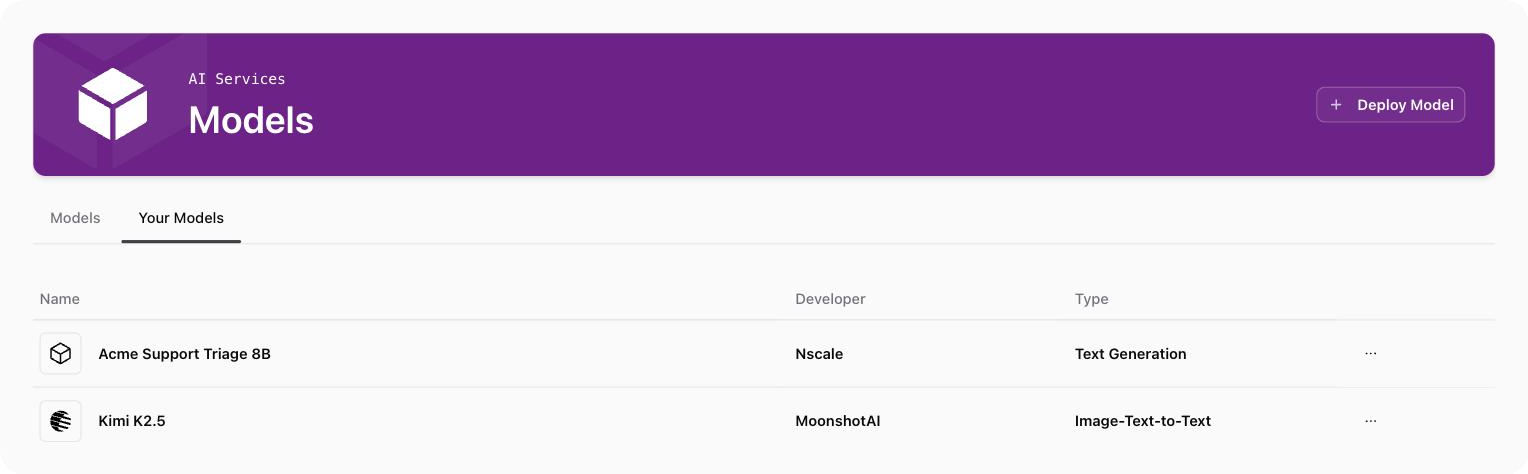
- A model’s page: click Deploy
- An environment: click ⋯, then Deploy Model
2
Name the deployment and pick a model
Under Deployment Details: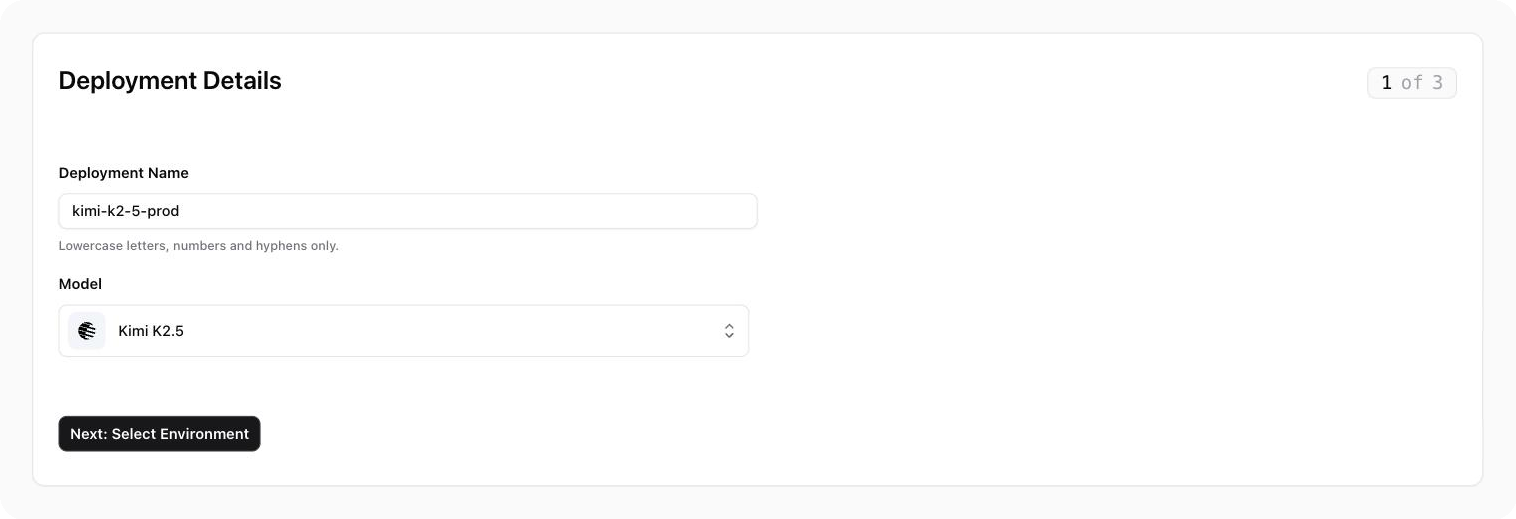
- Deployment Name: lowercase letters, numbers, and dashes. Up to 62 characters. Must be unique for this model.
- Model: search for and select the model.
3
Select an environment
Under Select Environment, pick where the model runs. Only Ready environments show in the list.No environment yet? Click + Create Environment. It opens in a new tab.
4
Select a profile
Under Select Profile, pick a profile.Each profile card shows the hardware it needs. The console checks this against your environment’s cluster.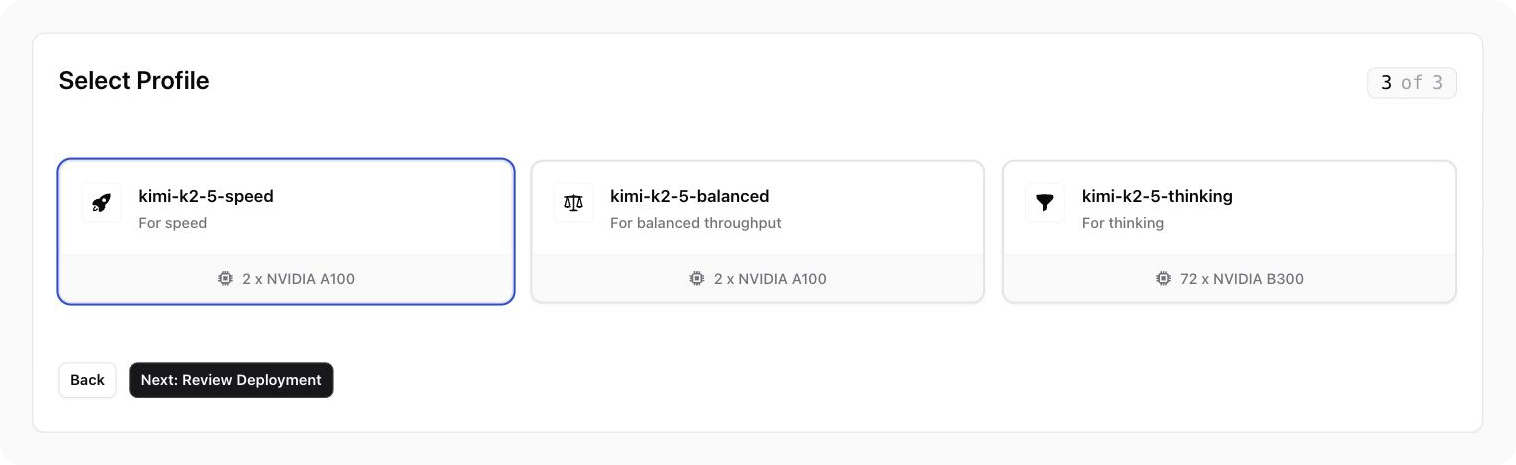
5
Review and create
Check the Review your Deployment summary. Click Create Deployment.
6
Copy your access key
A Copy your Access Key window opens. It shows a new access key.Click Copy Key & Create Deployment. This copies the key and starts the deployment. Nothing is created until you click it.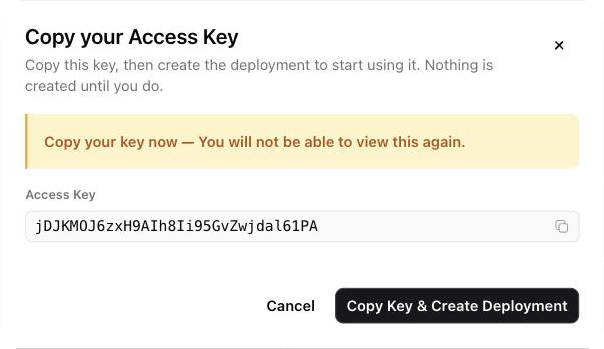
Large models take longer to download and start. You can leave the page.
Deployment status
The environment’s Deployments tab uses different words for the same status: Pending, In progress, Succeeded, Failed, and Cancelled.
Call your model
- Open the model’s page and go to Overview.
- Find the Access endpoint card. If you have more than one deployment, pick one from the menu at the top of the card.
- Copy the example in cURL, Python, or TypeScript.
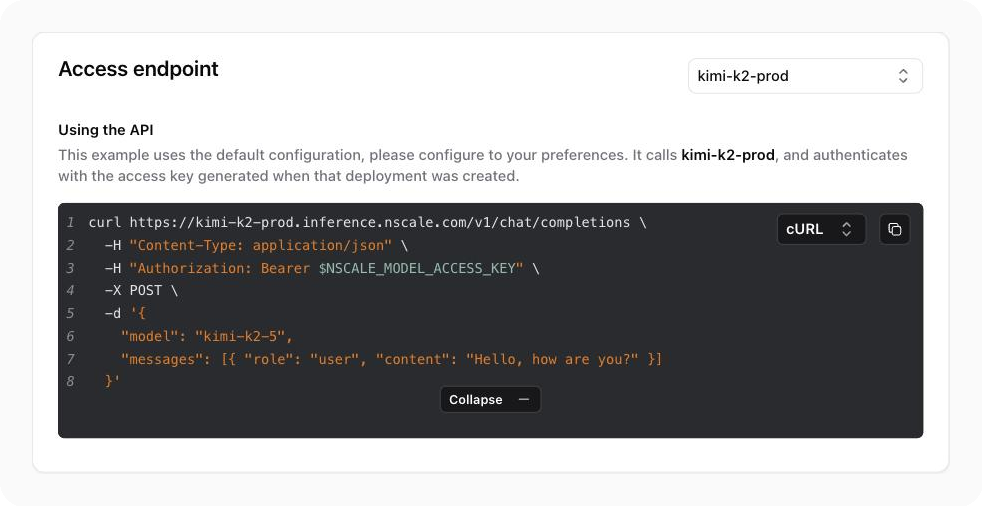
<your-endpoint>with the Endpoint from the console<your-access-key>with the key you copied<model-name>with the model name shown on the model page
Lost your access key? Roll it
You can’t view an access key again. If you lose it, create a new one.- Open the model’s Deployments tab.
- Click Roll Key on the deployment.
- Copy the new key. Click Copy Key & Redeploy.
Roll Key is not available for profiles that support more than one hardware type. For these, delete the deployment and deploy again.
Delete a deployment
- Open the model’s Deployments tab.
- Click ⋯ on the deployment. Click Delete Deployment.
- Confirm.